
WePanel User Manual #
WePanel is the glass panel engine of the WeSim cockpit system: it extracts the aircraft’s glass instruments (PFD, ND, ECAM, G1000, etc.) from the 3D cockpit and mirrors them to separate monitors or touchscreens. This manual is for WeSim users and explains WePanel’s day-to-day operation. For WeSim as a whole, see the WeSim User Manual.
System requirements #
To mirror MSFS 2020/2024 aircraft glass panels, the simulator’s graphics API must be set to DirectX 12. Panel capture is not available in DirectX 11 mode.
Quick start #
WePanel runs together with WeSim — no separate installation or launch needed.
- Start WeSim and go to Settings → Popout Panel
- Select or create a panel configuration (Profile)
- Add the panels you want to mirror (add from the built-in panel library in one click, or type a panel name manually)
- Click Start PopOut to pop out all panel windows, or click Mirror Panels to preview and select first
The status bar at the bottom of the window shows the WePanel service status: WePanel: Started means the service is running normally; while panels are loading you may see messages like “Panel data not ready, please retry later” — this is normal.
Mirroring panels #
Separate the glass instruments from the 3D cockpit and show them in their own windows:
- On the left side of the Popout Panel page, select a panel configuration
- Add target panels to the list (built-in library: FBW A320, PMDG 737, Working Title G1000/G3000/CJ4, etc.; or type any panel name manually)
- Set the window position and size of each panel (left/top/width/height)
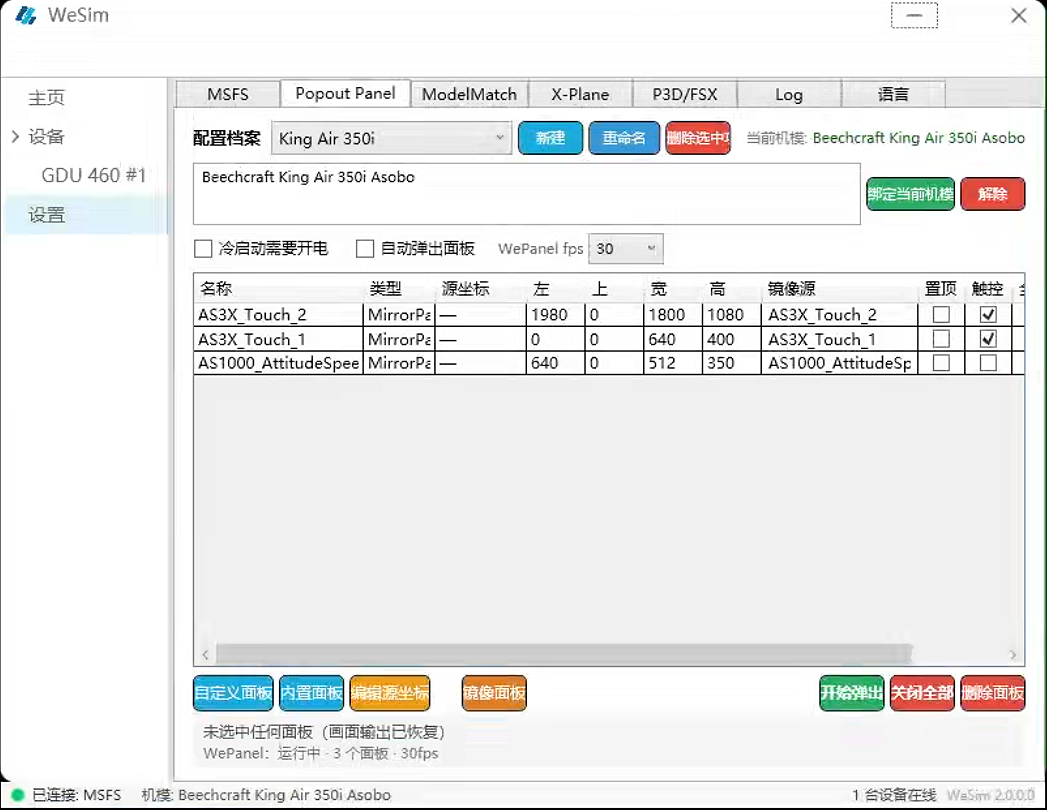
- Click Start PopOut — all panels pop out as separate windows, freely draggable to any display (including touchscreens)
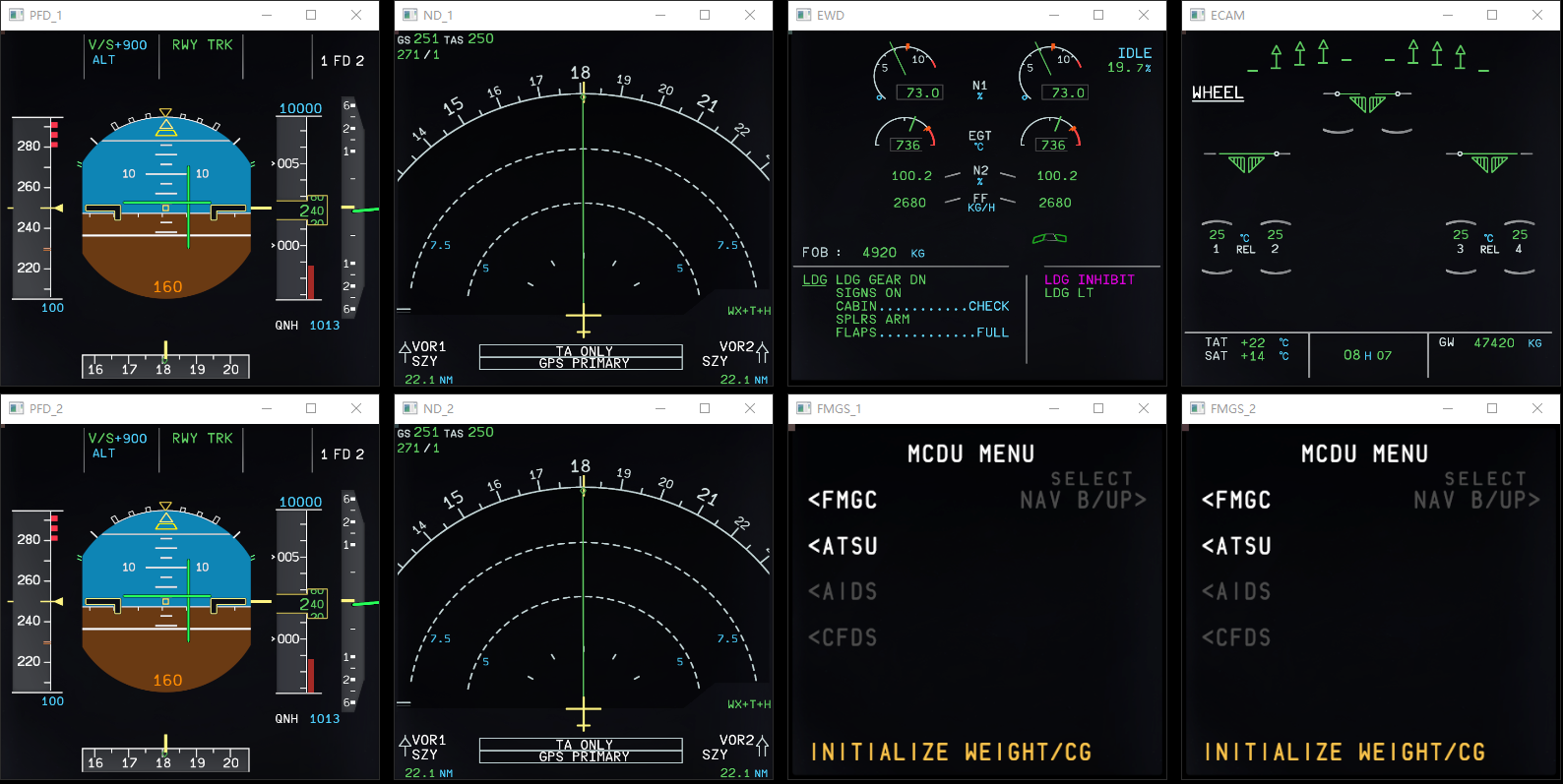
- When done, click Close All to close all windows
Panel images come from the simulator’s real-time rendering and stay fully in sync with the cockpit. Popping out doesn’t affect simulator operation.
Grid preview #
With many panels, use the grid overview to locate them quickly:
- Click the Mirror Panels button
- All discovered panels are shown as a thumbnail grid
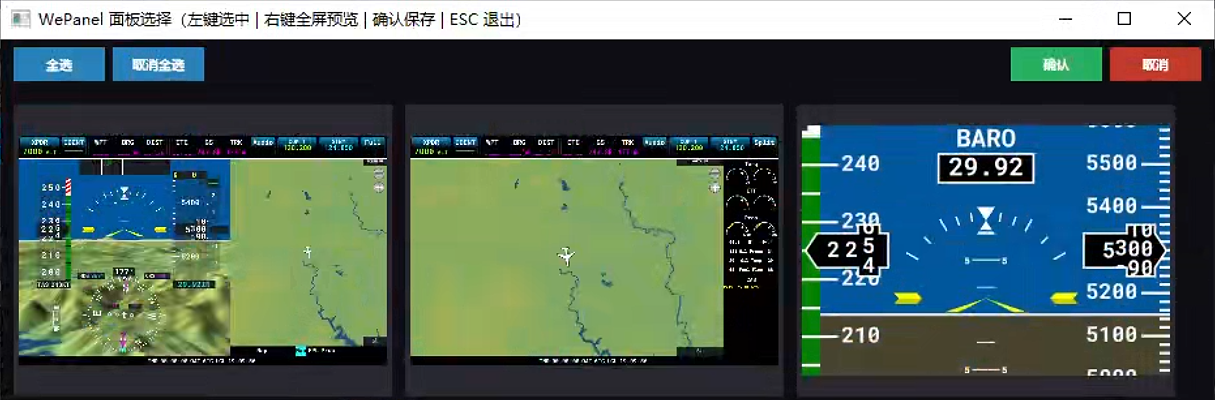
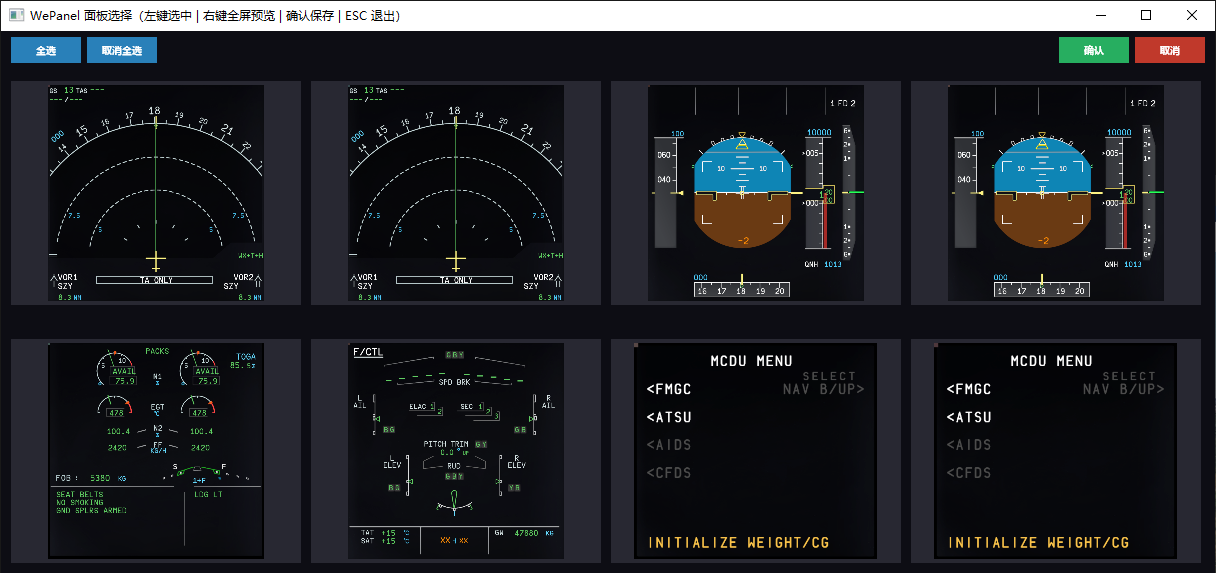
- Left-click a panel to select and pop it out; right-click to show it fullscreen
Touch operation #
On touchscreens, mirrored windows support direct touch operation:
- Tap, swipe and long-press work like the real device
- Panels requiring hover interaction (like G3000) are specially adapted
- Operation latency can be adjusted in settings (WePanel fps dropdown)
Note: most mainstream panels support touch operation; a few special instruments (WASM-based third-party panels) do not accept external touch commands for security reasons — use physical keys or a mouse for those panels.
LAN screen sharing #
Mirrored window images can be shared to other devices on the same LAN (viewed directly in a browser, no software installation):
Make sure the PC and the viewing device are on the same LAN
Find the PC’s LAN IP: Windows Settings → Network & Internet → View network properties (something like
192.168.x.x)Enter the address in the browser:
http://<PC-IP>:18998For example, if the PC’s IP is
192.168.1.100, enter:http://192.168.1.100:18998
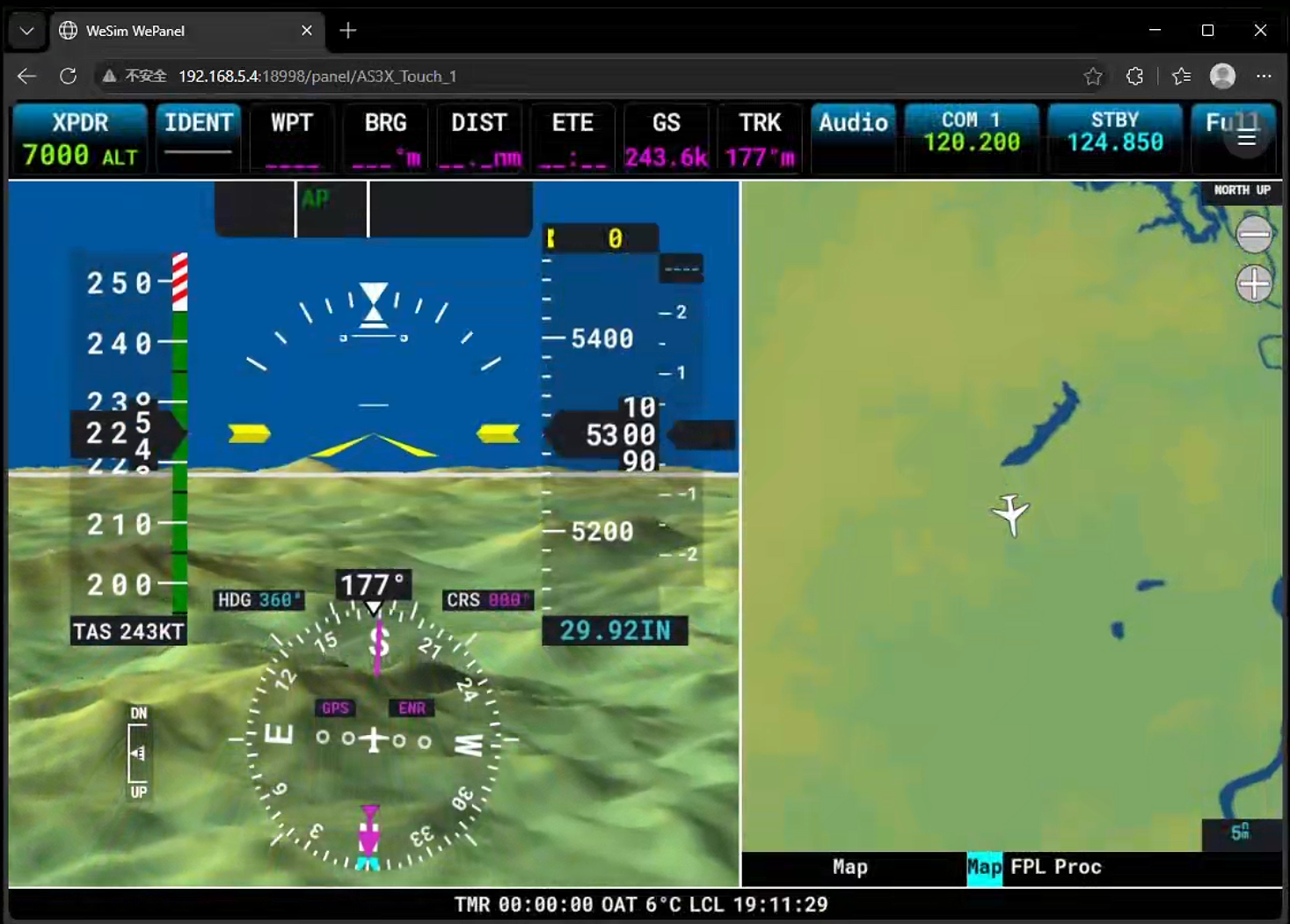
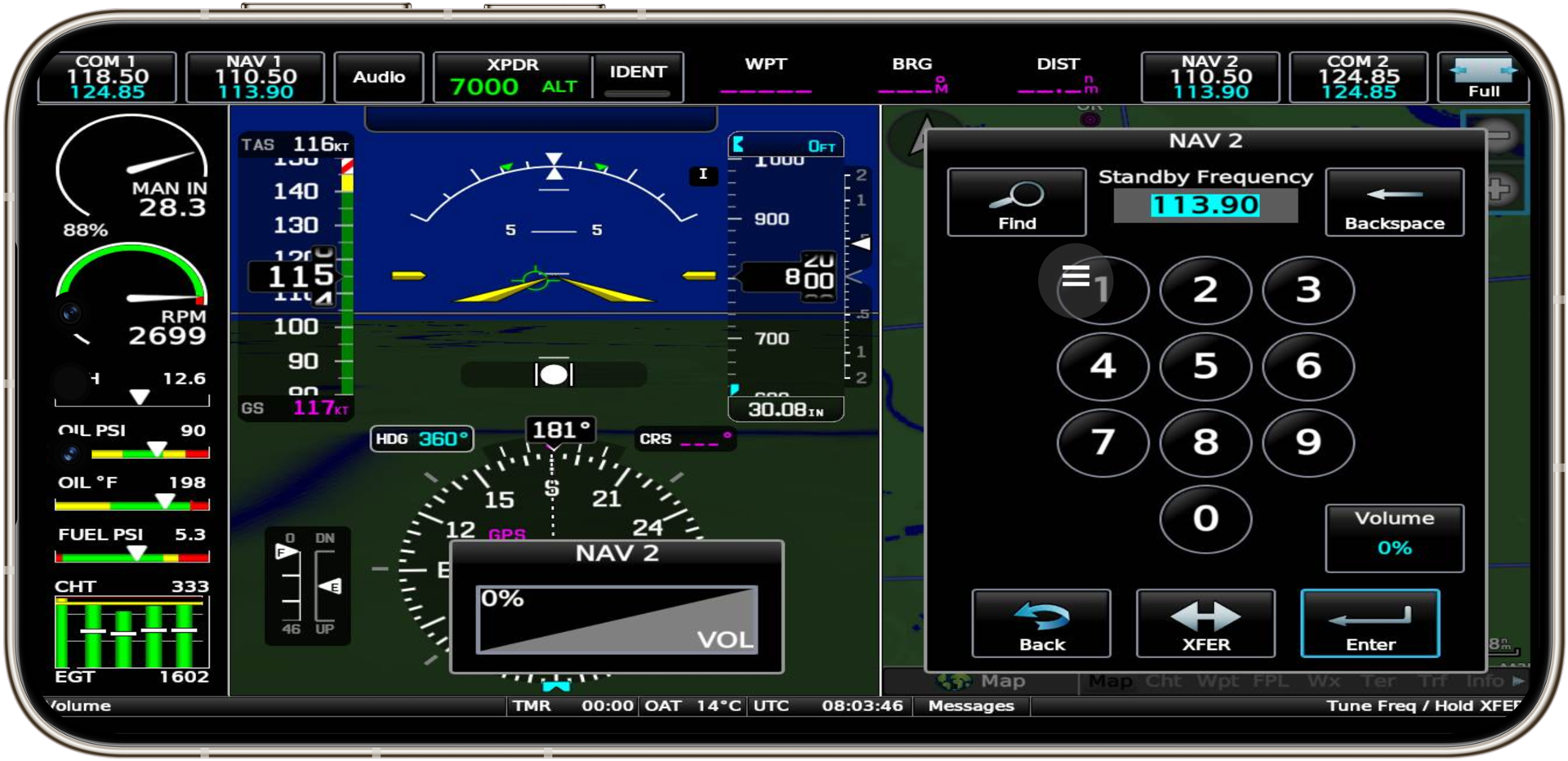
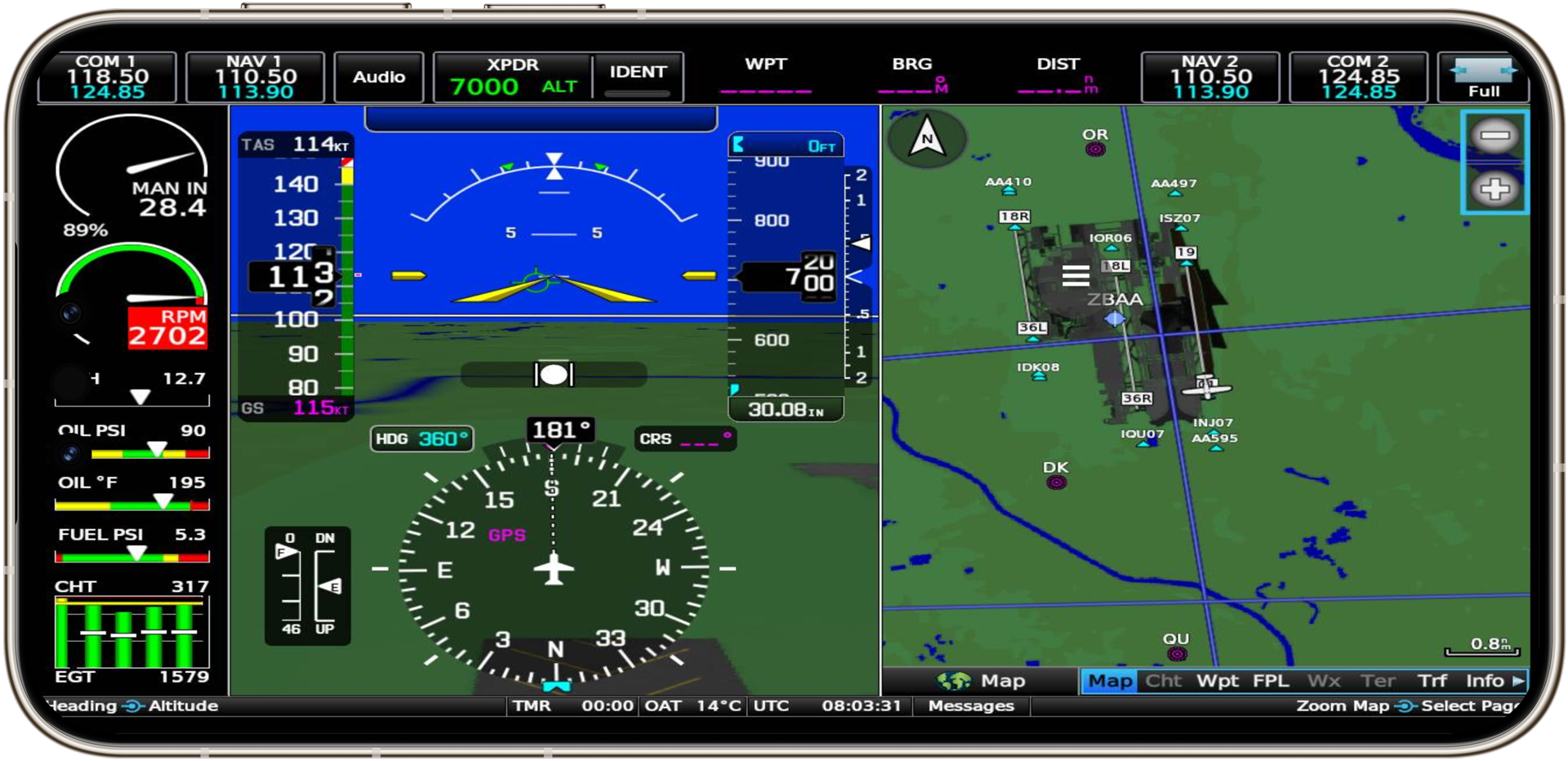
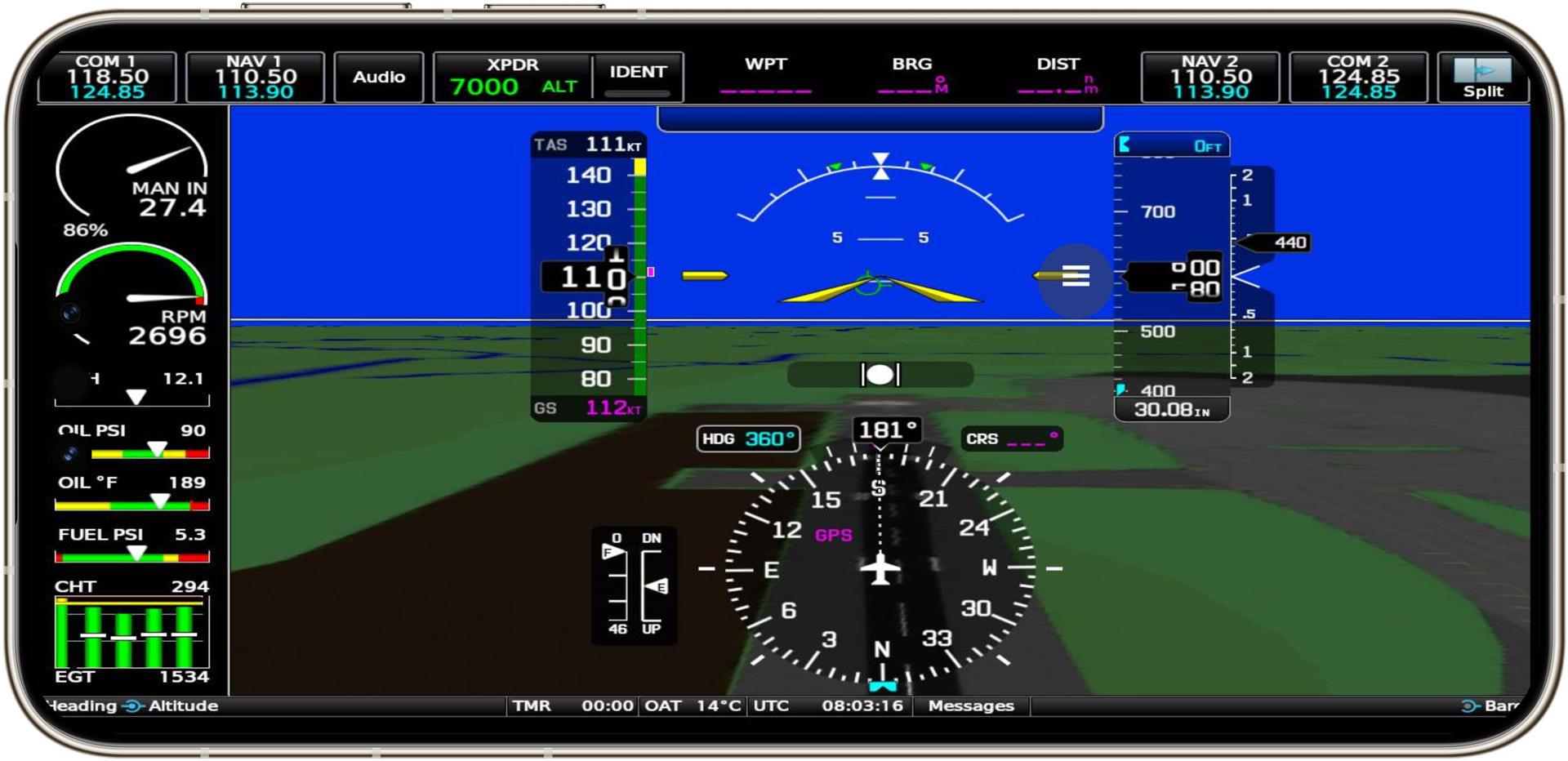
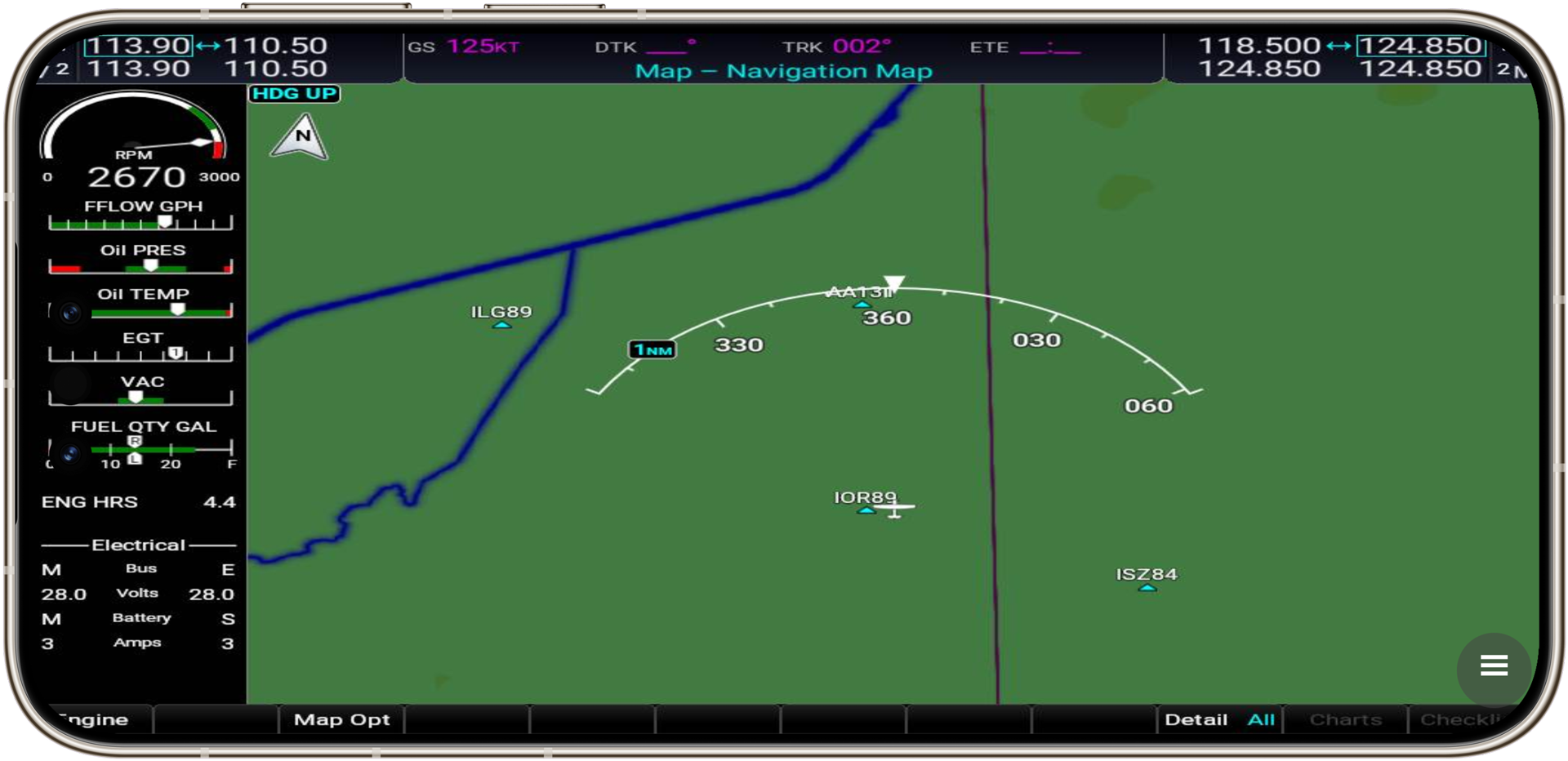
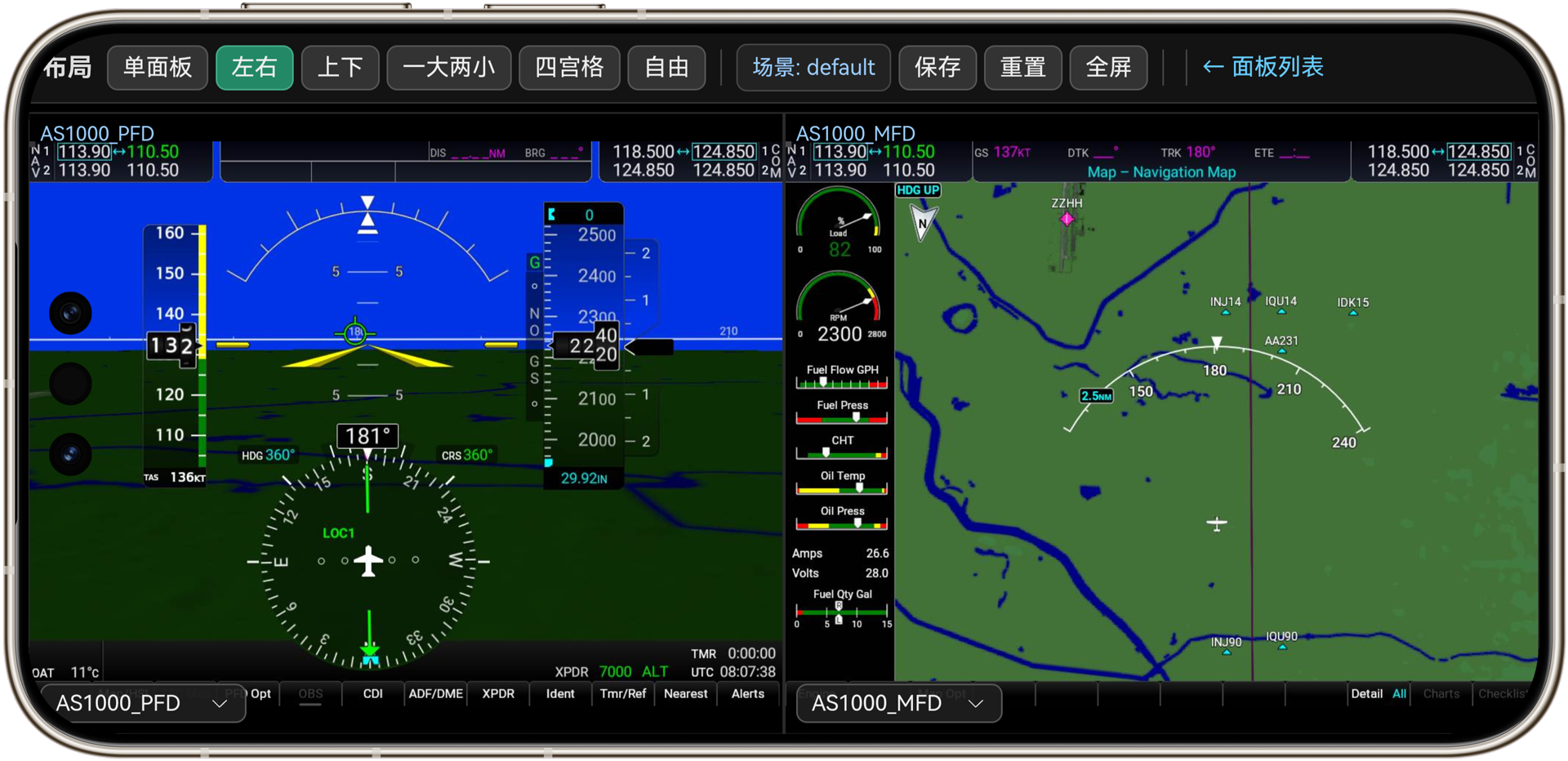
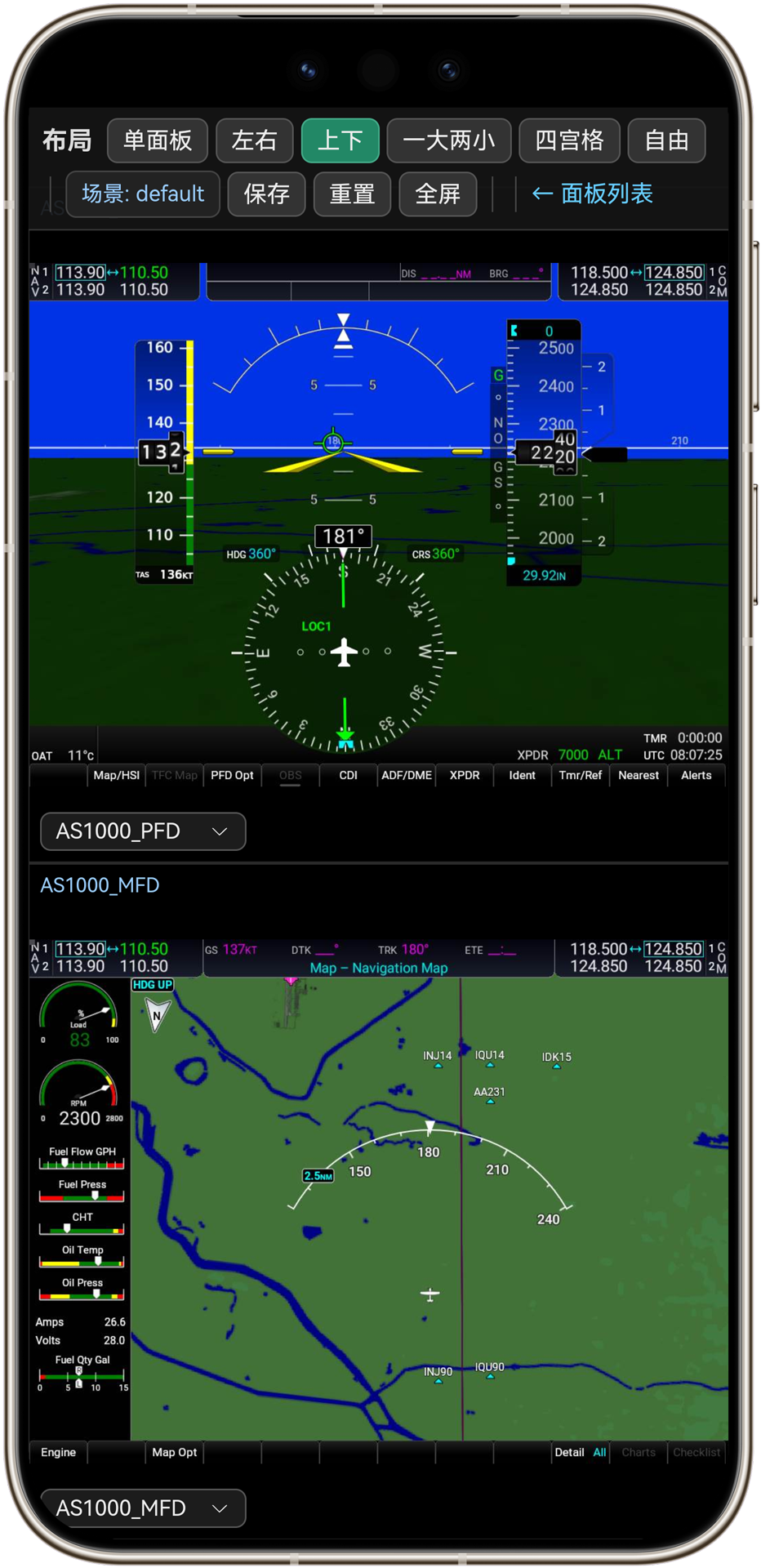
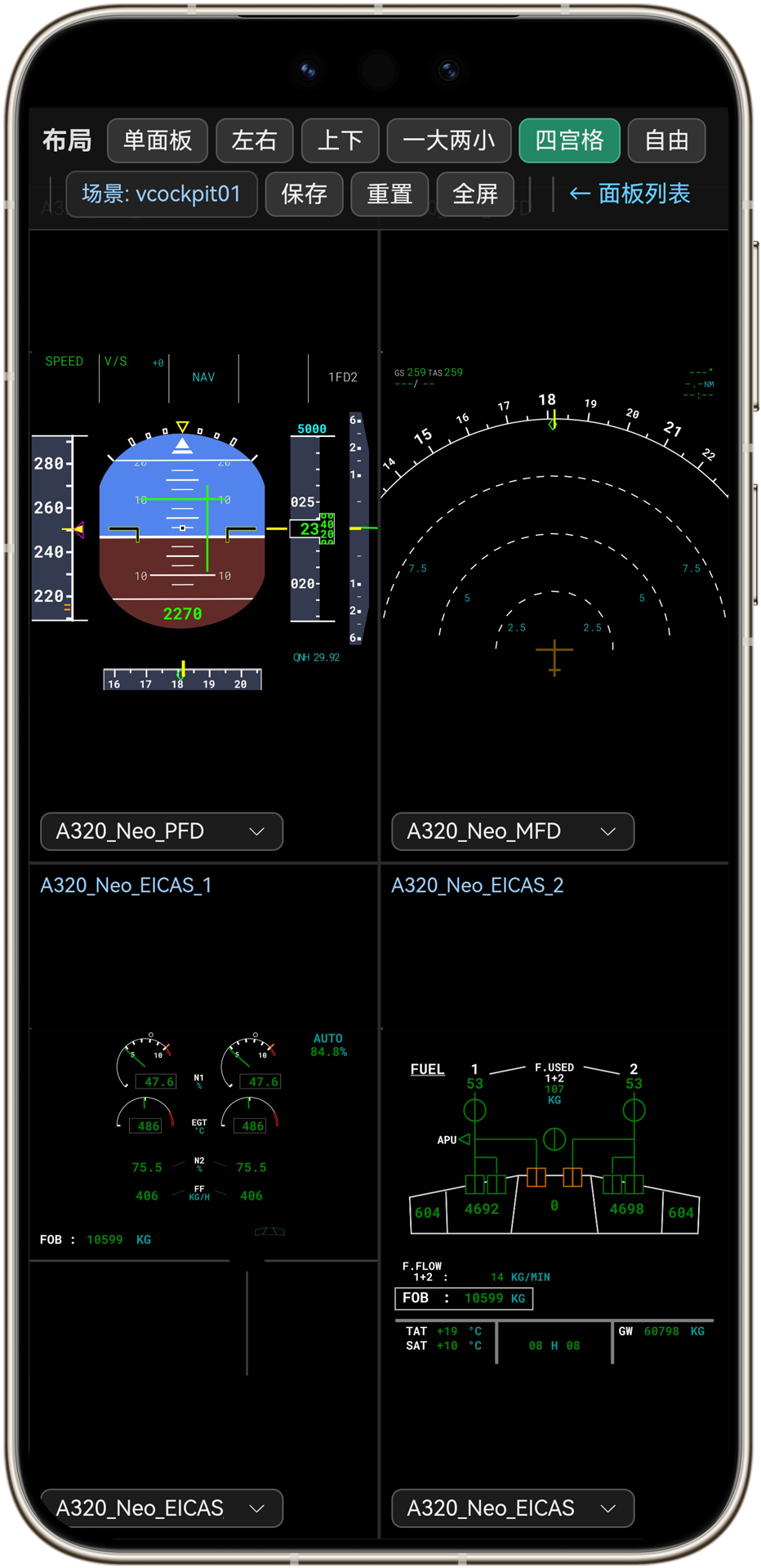
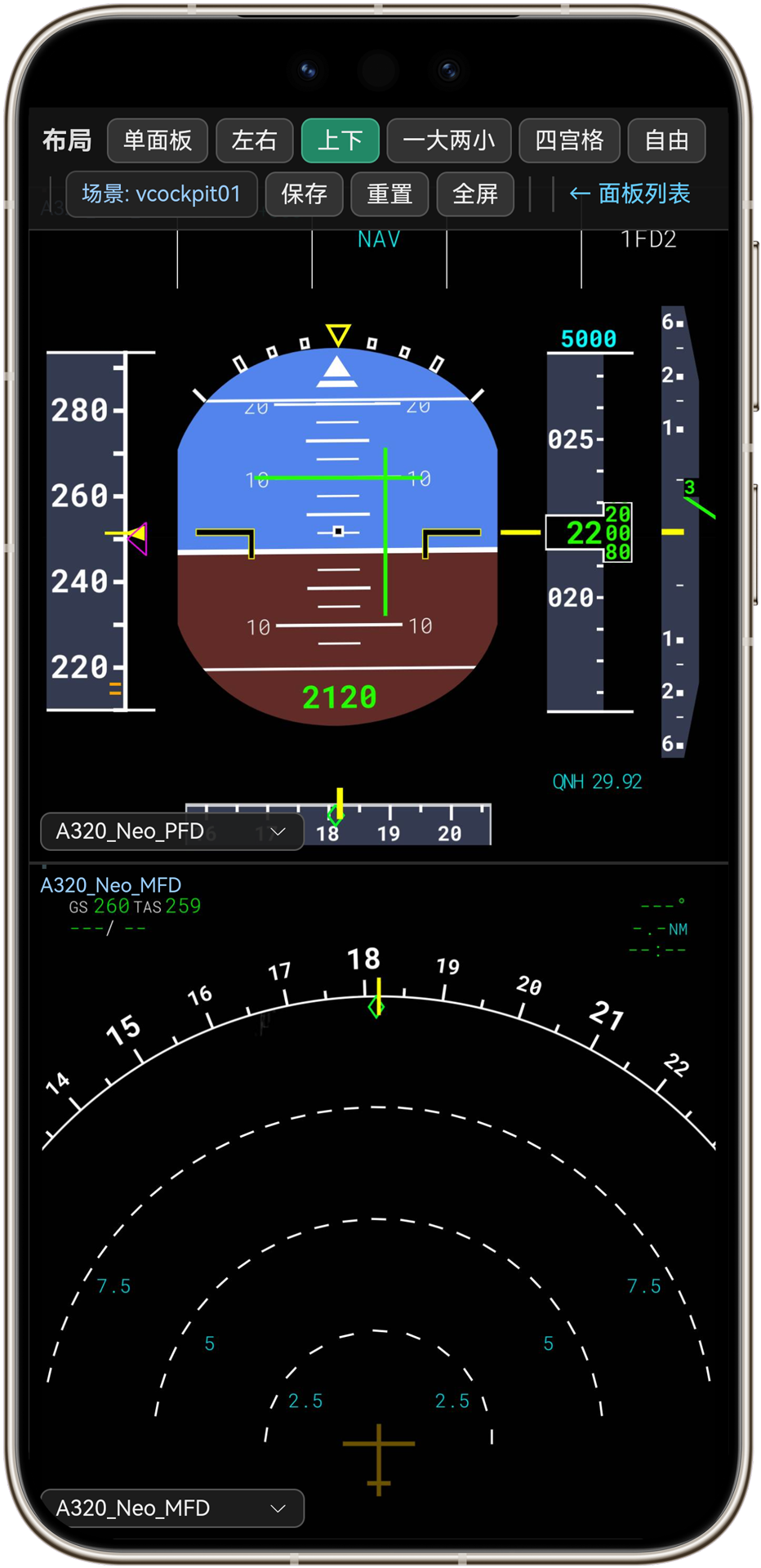
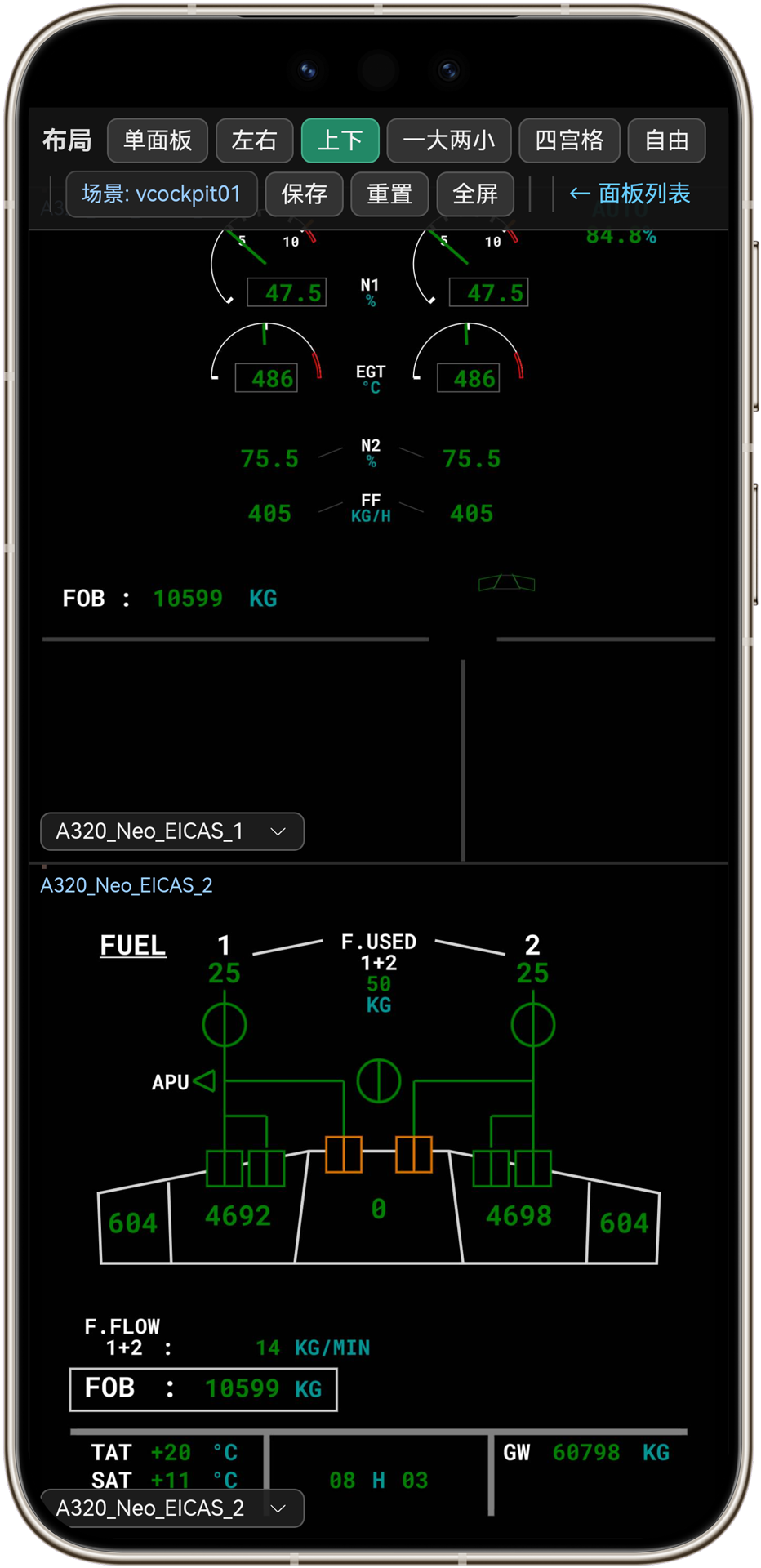
- The page shows a panel list with the live images of all panels; click a panel to open its page, where you can also operate the panel directly from the web page
Ideal for classroom demos, group viewing and remote inspection.
Switching aircraft #
After switching aircraft or reloading the cockpit, WePanel automatically detects and rebuilds panel data:
- Old panel images are invalidated automatically — no leftover or scrambled windows
- The new aircraft’s panels are discovered automatically; just pop them out again
- If you see a brief “panel loading” message, wait a few seconds and retry
Status & messages #
| Message | Meaning | Action |
|---|---|---|
| WePanel: Started | Service running normally | — |
| Panel data not ready, please retry later | Panels still loading | Wait a few seconds and retry |
| No instrument panels detected (aircraft loading or not in cockpit) | Not in the cockpit yet or the aircraft hasn’t finished loading | Retry after entering the cockpit |
| Port conflict, please restart your PC | System resource issue | Restart the PC and retry |
FAQ #
See the WePanel FAQ.


