
WePanel Glass Panel Engine #
Turn your aircraft’s glass cockpit instruments into real screens in your cockpit.
No manual pop-outs — panels appear automatically when you enter the cockpit.
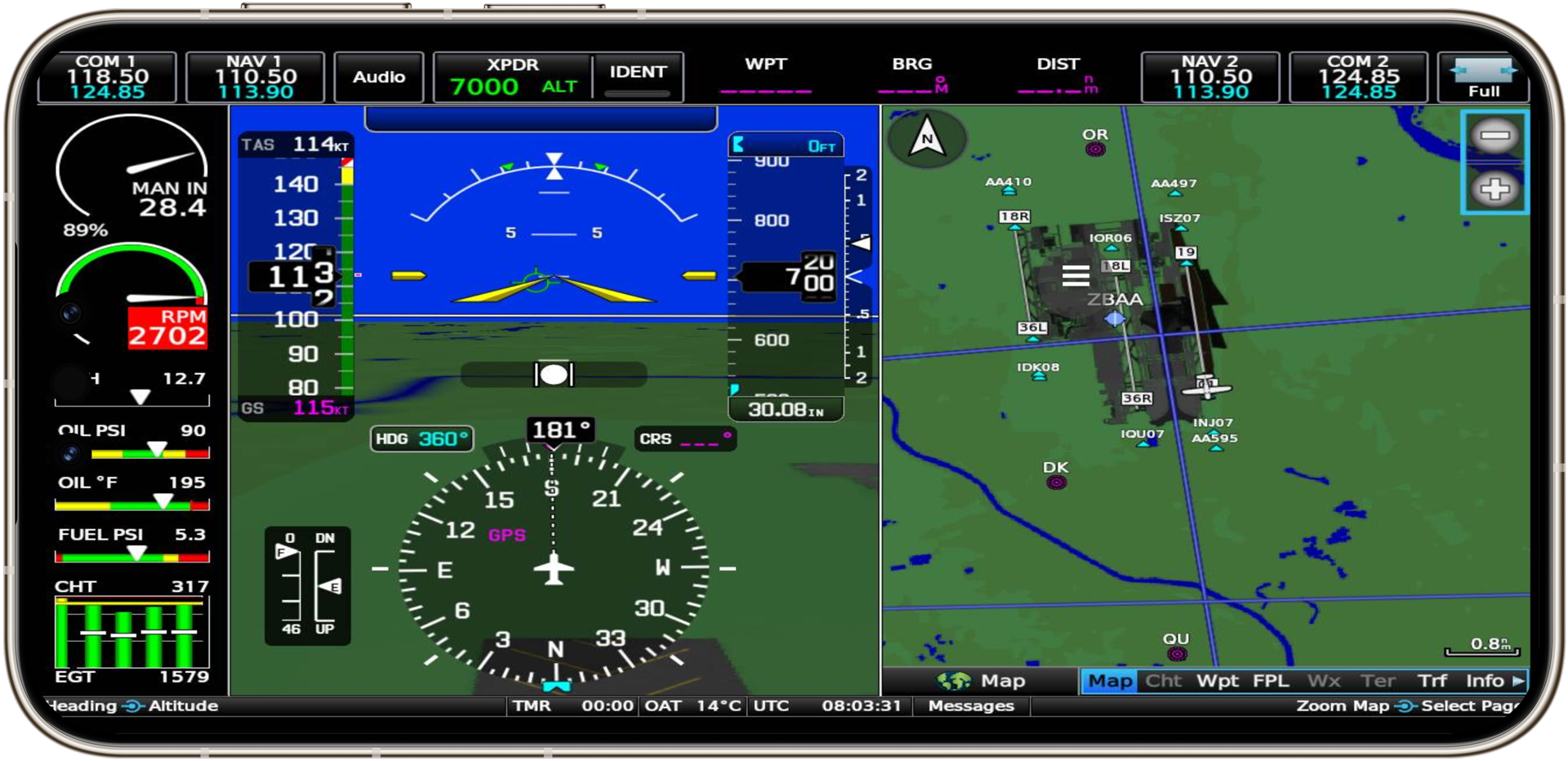
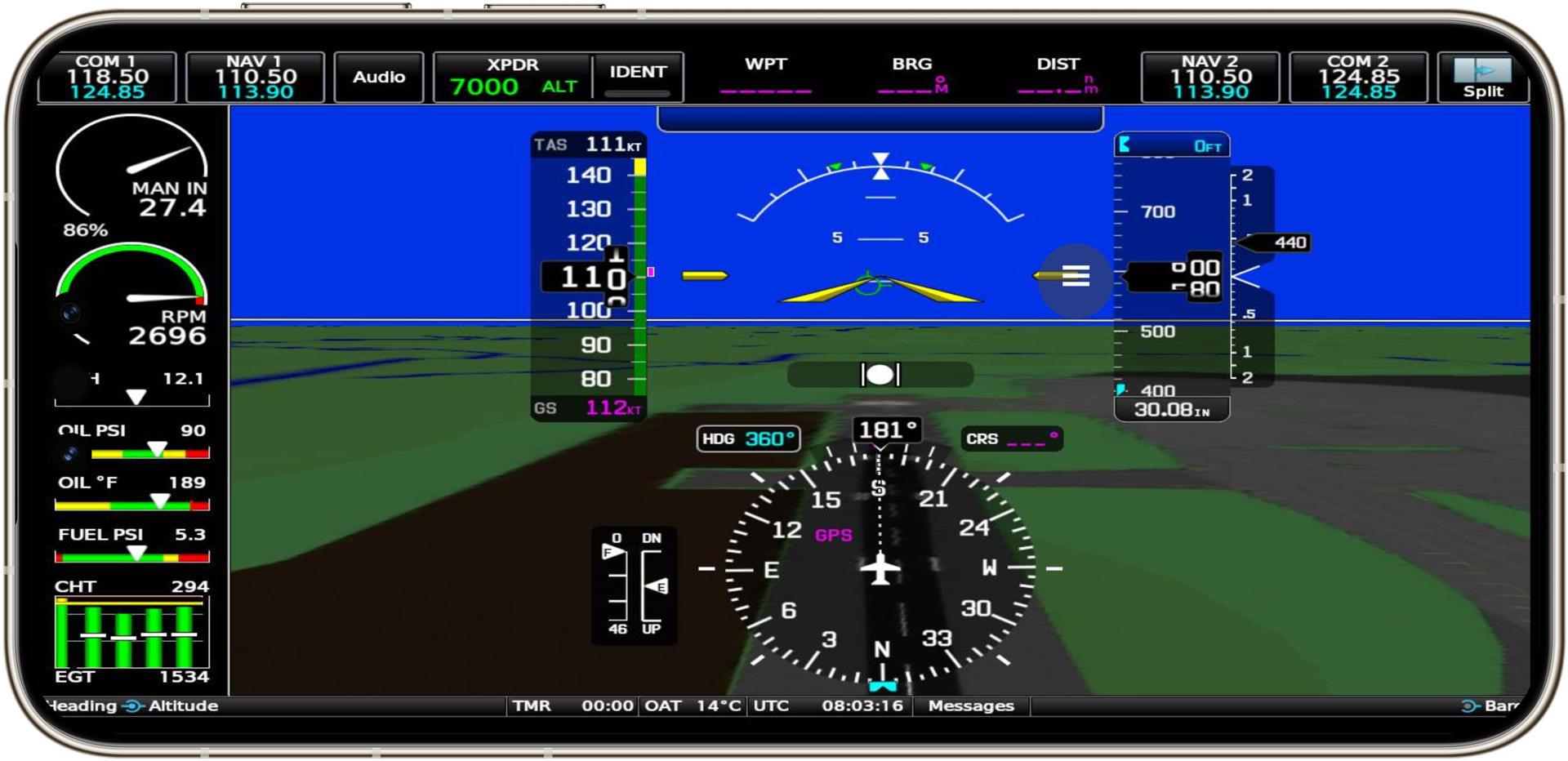
WePanel is the glass panel engine of WeFly Technology’s WeSim cockpit system, provided free with WeSim. It automatically captures the glass instruments built into MSFS aircraft (PFD, ND, ECAM, G1000, etc.) and mirrors them in real time to separate monitors or touchscreens, with grid overview, multi-panel rotation, touch control and LAN screen sharing. The picture is exactly the same as in the cockpit — no window ever needs to be popped out manually.
Why you need it #
In a real cockpit, glass instruments (PFD, ND, ECAM…) each have their own screen: fixed in position, within reach. In flight simulation, these instruments are embedded in the 3D cockpit view by default, and the only way to look at them is to drag the camera around with the mouse — unrealistic, and nothing like a real cockpit layout. This is the biggest gap in the experience, especially for cockpit builders, training and immersion.
WePanel “extracts” the aircraft’s glass instruments from the 3D cockpit and puts them on real screens, in real positions.
Key advantages #
Automatic capture, no manual pop-outs #
Once you enter the cockpit, WePanel automatically discovers all the aircraft’s glass panels — no window ever needs to be popped out manually in the simulator. Everything happens in the background. Your job is to fly, not to arrange windows.
One-click mirroring, instruments on their own screens #
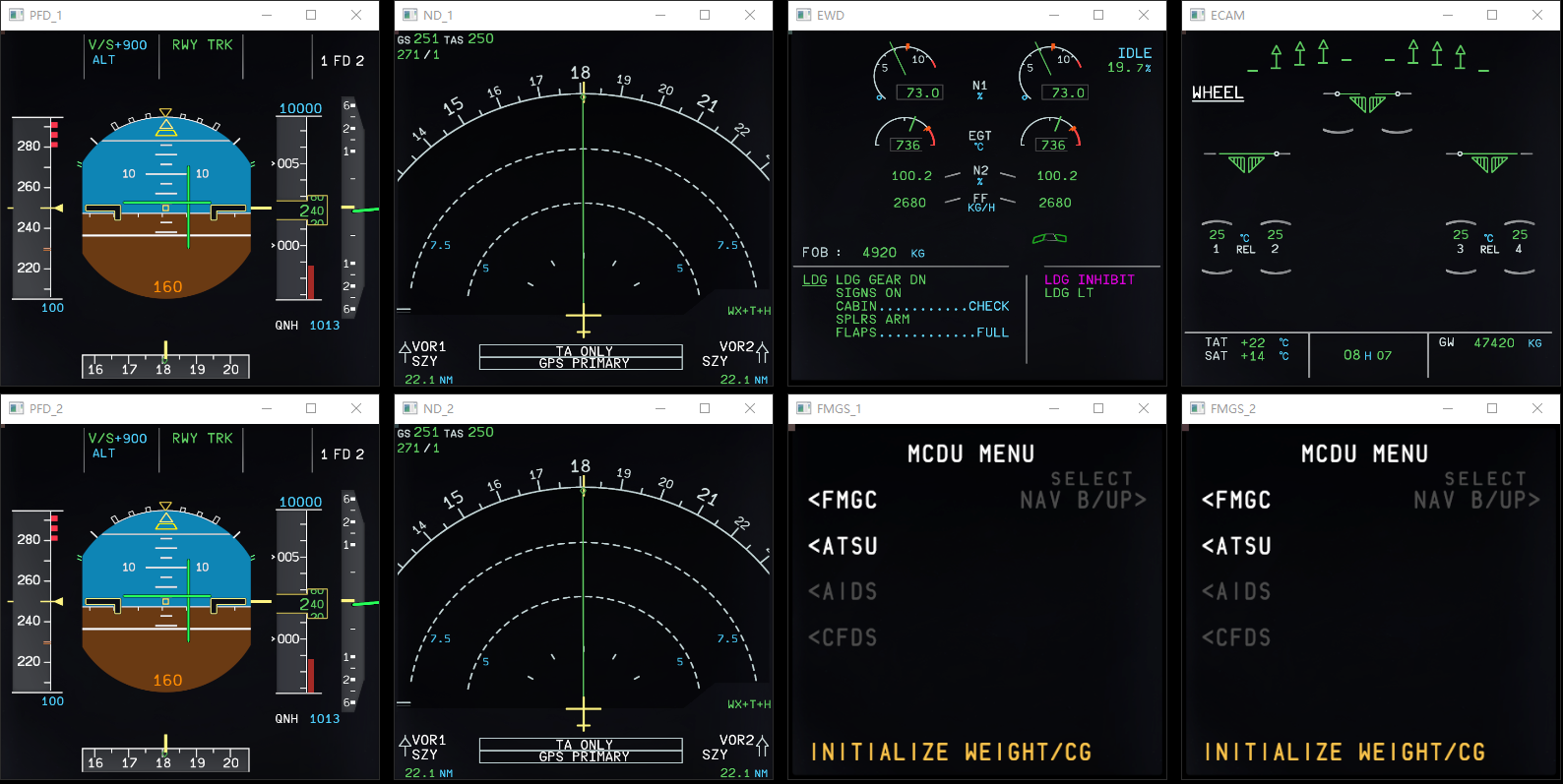
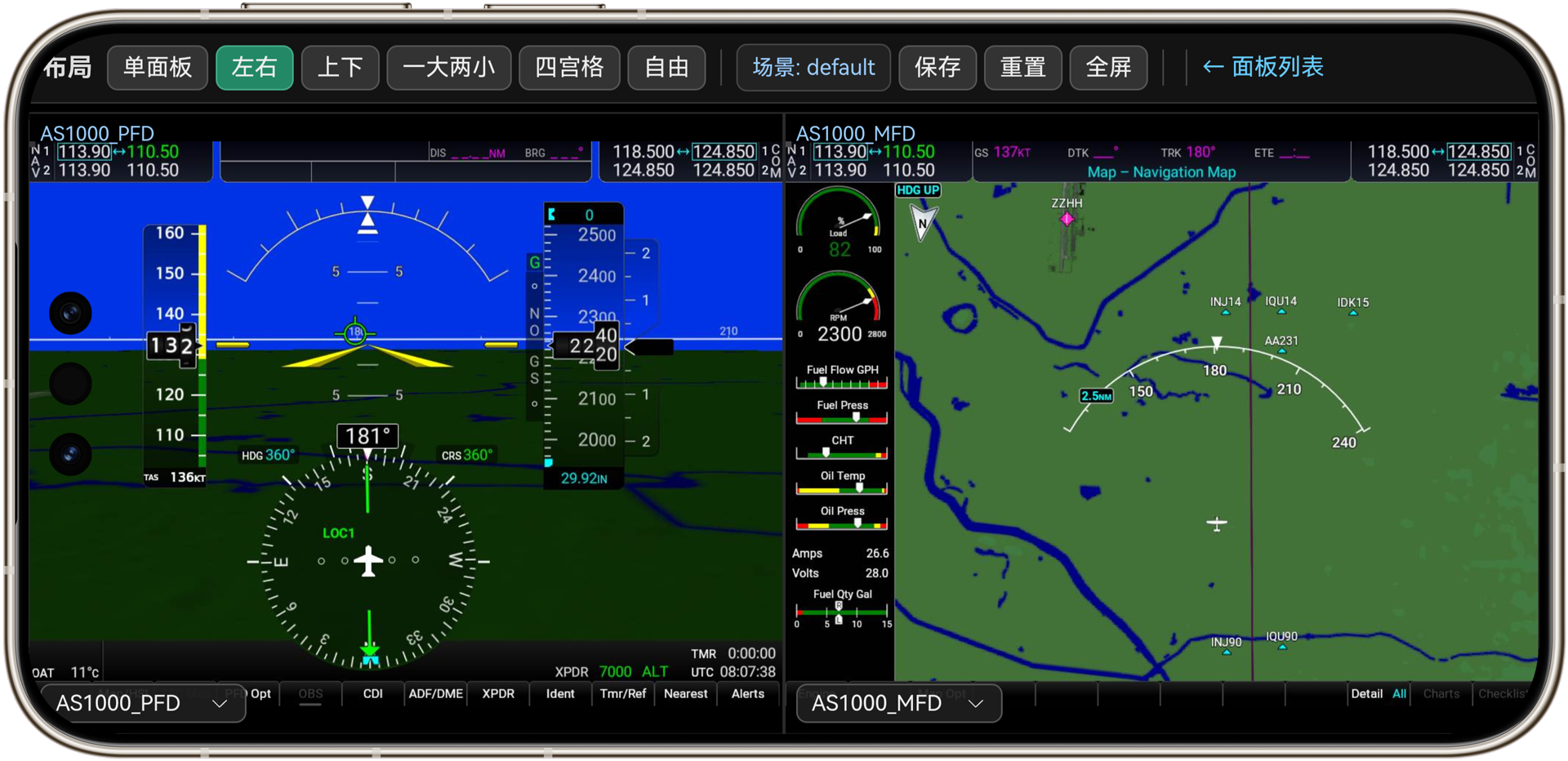
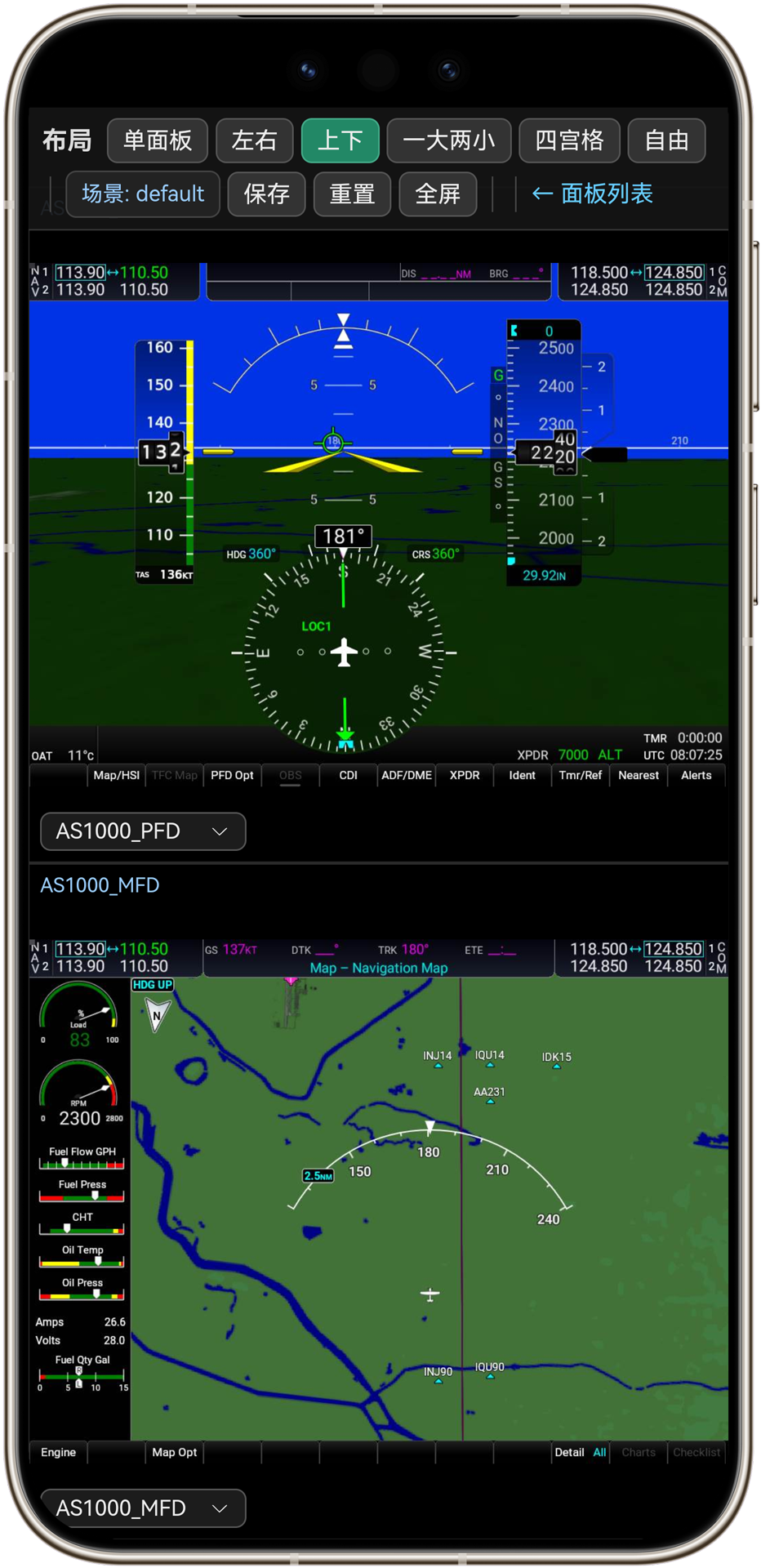
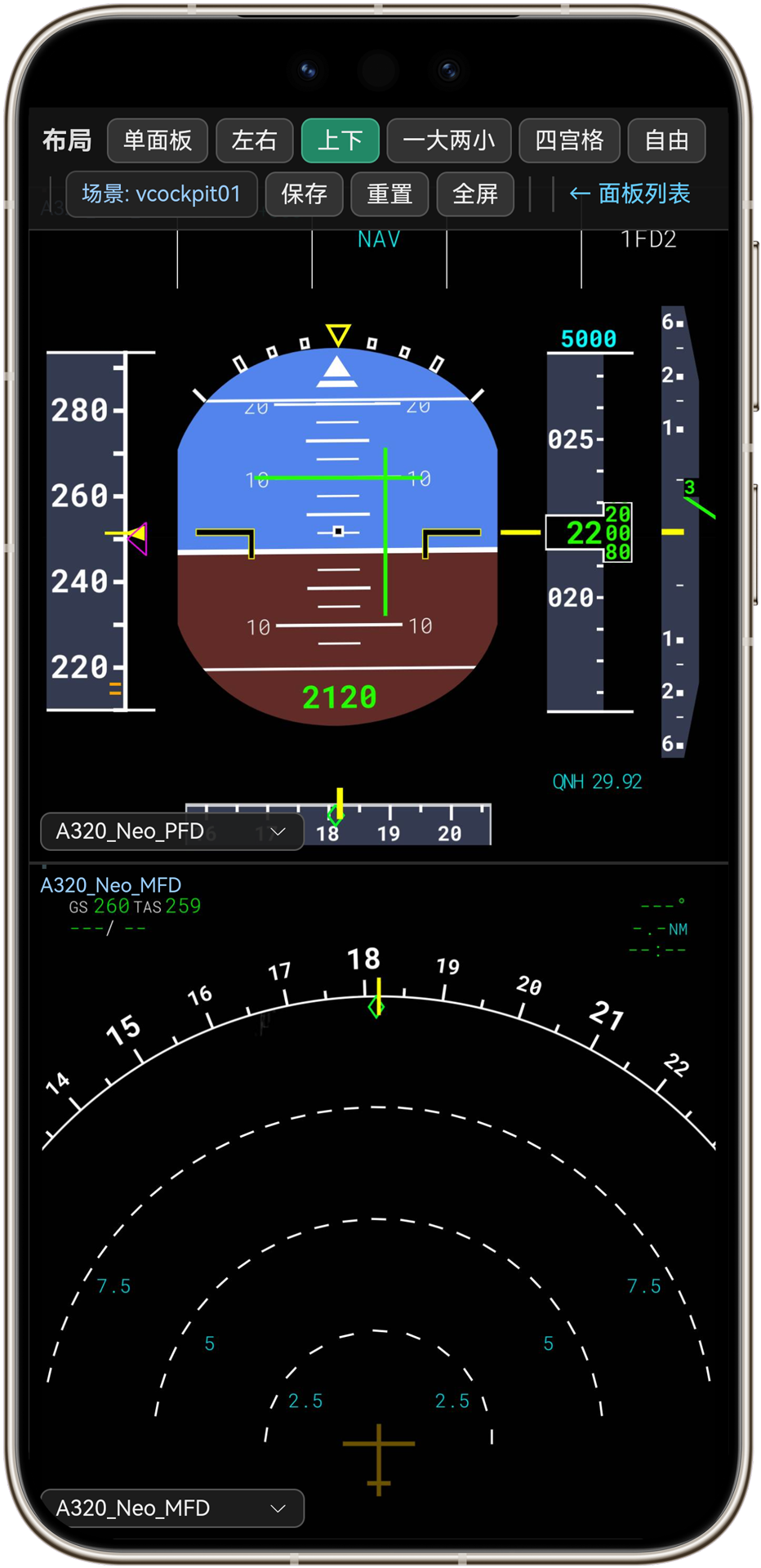
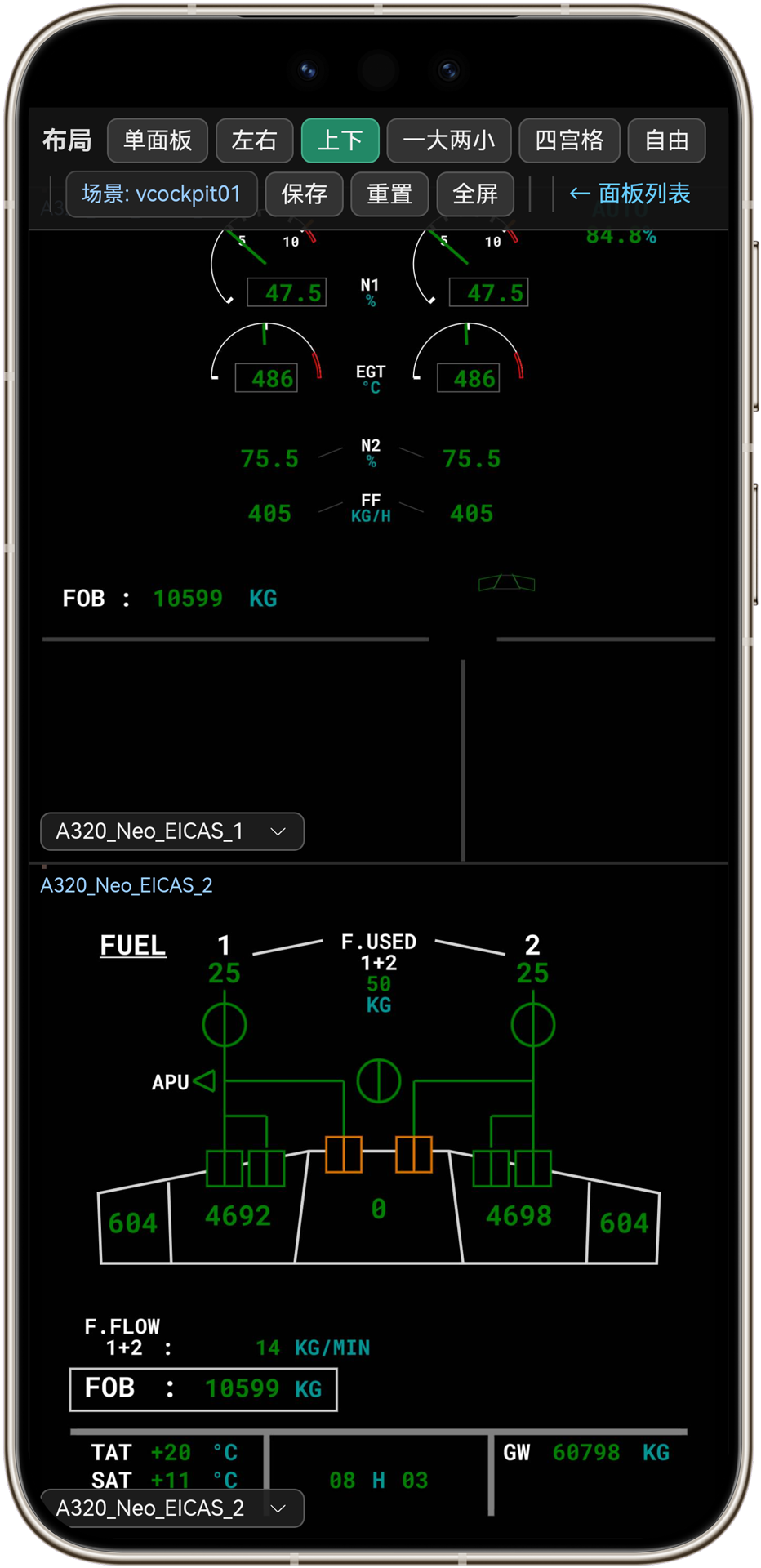
Select any glass panel in WeSim and pop it out as a separate window with one click. PFD on the left screen, ND on the right, ECAM in the center — every instrument corresponds to its position in the real cockpit, and can be freely dragged to any display, including touchscreens.
Touch control, real feel #
Touchscreens are fully supported for direct tap and swipe: tapping waypoints, turning knobs — everything works like real hardware, no mouse needed. Panels that need hover interaction (like G3000) are specially adapted, so long-press and hover menus work smoothly too.
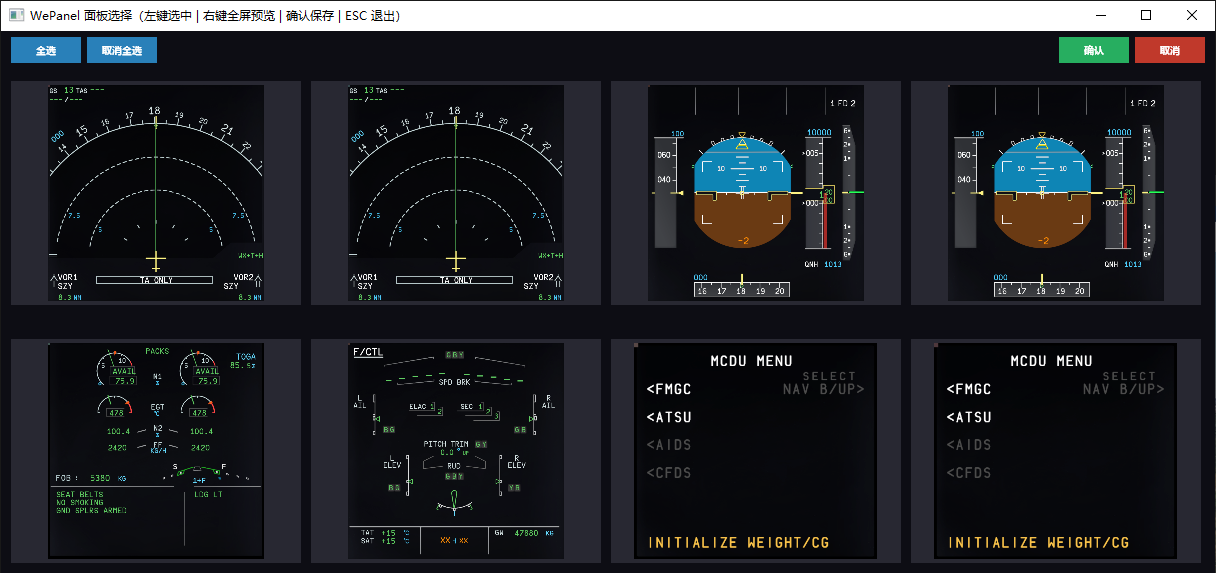
Grid overview, all instruments at a glance #
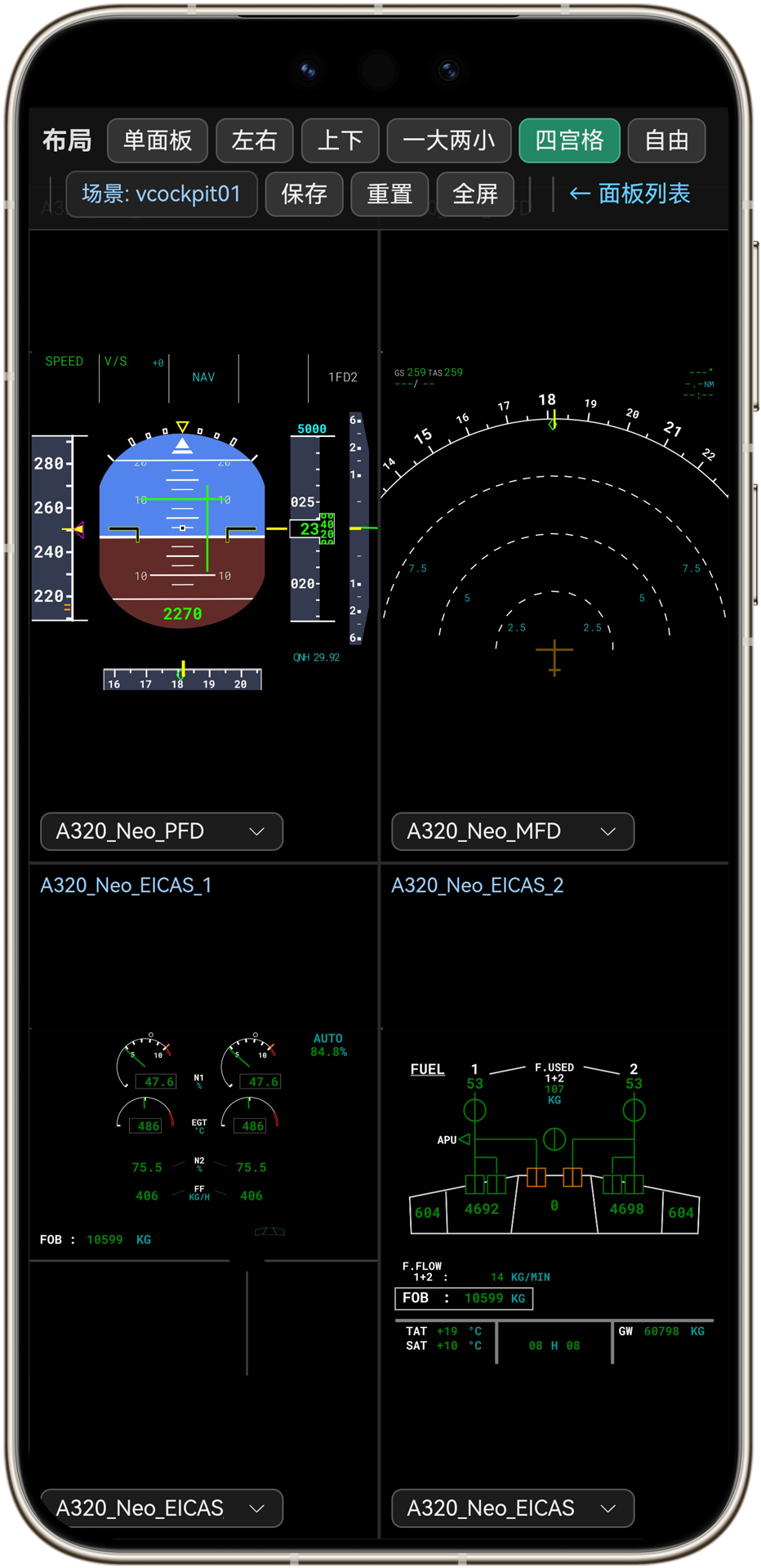
One click shows thumbnails of every discovered panel for quick locating and pop-out — the full state of the cockpit instruments at a glance.
Continuous rotation with multiple panels #
When there are more panels than screens, panels rotate on the screen in sequence, so a single screen can cover the workflow of several panels.
Real-time screen sharing #
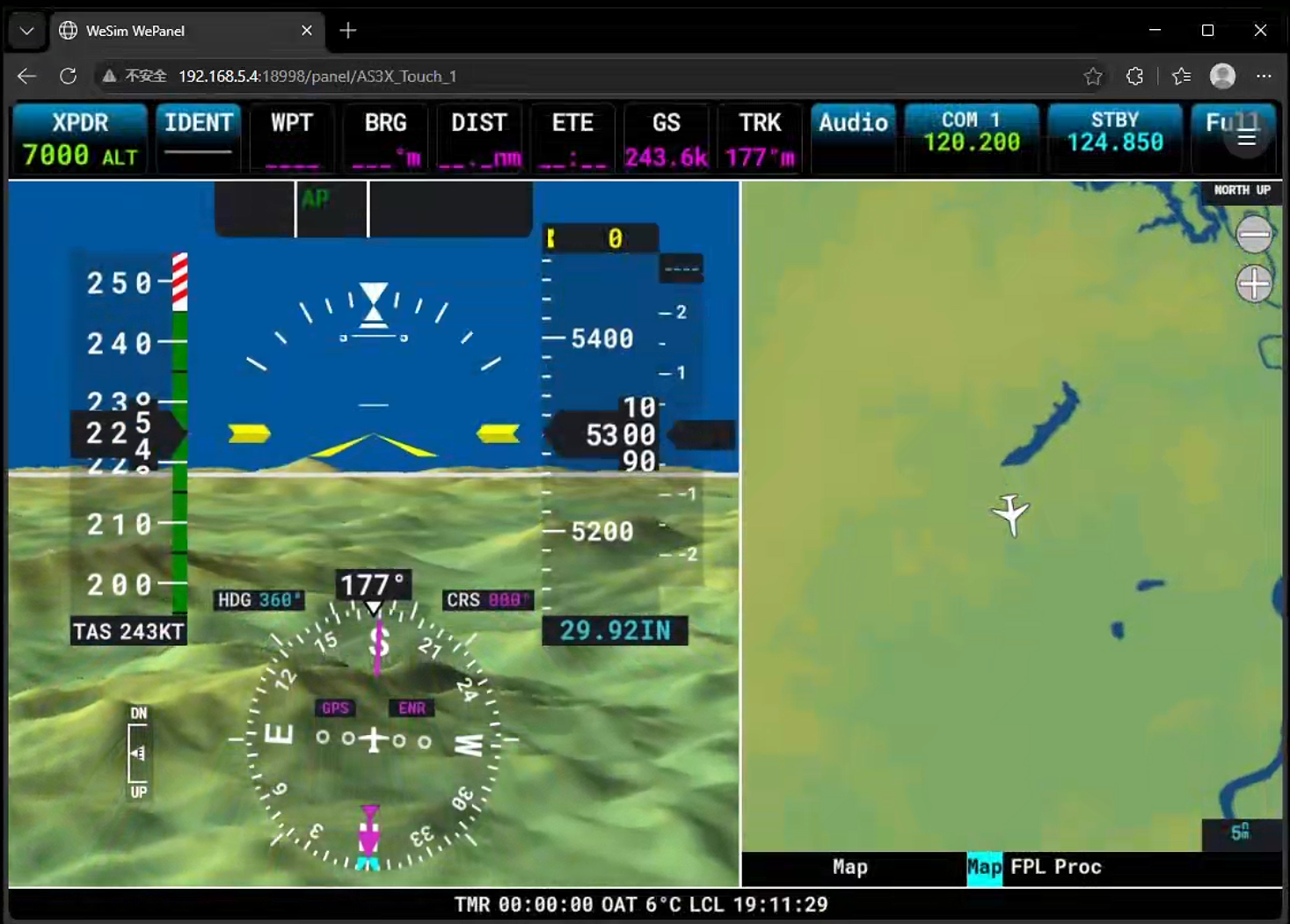
Panel images can be streamed over the LAN as a video feed — phones, tablets, laptops and other devices can open them directly in a browser, no app installation required: check your PC’s LAN IP and enter http://<PC-IP>:18998 in the device browser to view the live images of all panels, and even operate the panels directly from the web page. Great for classroom demos, group viewing and remote inspection.
Seamless aircraft switching #
When you switch aircraft or reload the cockpit, panel data is automatically re-detected and rebuilt — no leftover or scrambled images in the grid and mirrors. Switch and fly.
Stable and reliable #
When an aircraft loads or the cockpit switches, panel images automatically wait for the data to be ready — until then you’ll see a clear “please wait” message instead of black or scrambled screens, and display resumes automatically once ready. When you close WeSim, all panel windows close together with no leftovers. Rock solid during long sessions.
Image quality & performance #
- Lossless image quality: panel images come directly from the simulator’s rendering pipeline, exactly matching what’s shown in the cockpit — no second screen capture, no compression loss; instrument digits and chart lines stay crisp
- Minimal performance impact: on-demand capture in the background, working only when panel content changes; no interference with flying, smooth even in long sessions
Get started in three steps #
- Launch: make sure MSFS uses DirectX 12, start WeSim and enter the cockpit — panels are discovered automatically
- Add: add target panels from the built-in panel library (FBW A320, PMDG 737, Working Title G1000/G3000/CJ4, etc., or type any panel name manually)
- Pop out and fly: click to pop out; the panel appears in its own window; drag it to your target display and fly
Use cases #
From a single computer to a full cockpit, WePanel fits every way of flying:
| Scenario | What you get |
|---|---|
| Single-screen entry | Laptop + one secondary screen, PFD/ND on separate displays, much clearer than embedded in the 3D cockpit |
| Desktop cockpit | Multi-screen layout, every instrument in its place, direct touch on touchscreens |
| Full cockpit | Glass instruments on separate screens + physical hardware panels working together, complete realism |
| Training & teaching | Instrument images display clearly and can be shared to a big screen; easier to explain |
| Experience centers / showrooms | Touch control + remote screen sharing, visitors can start flying immediately |
| Streaming / content creation | Instrument displays output independently, more professional stream views |
Integration with WeFly hardware products #
WePanel’s screen mirroring works naturally with WeFly’s own avionics hardware panels: WePanel shows the picture, physical hardware does the operating — screen + buttons + LED status lights as one unit, fully recreating real cockpit interaction.
G1000 family (C172, etc.) #
- G1000 PFD & Audio: 95-key physical panel that recreates the Garmin G1000 PFD softkey/knob layout, with the audio panel LED status lights integrated. WePanel mirrors the aircraft’s G1000 PFD image onto a separate screen — softkeys respond instantly, audio panel lights sync in real time. Screen display, button operation and light feedback correspond one to one.
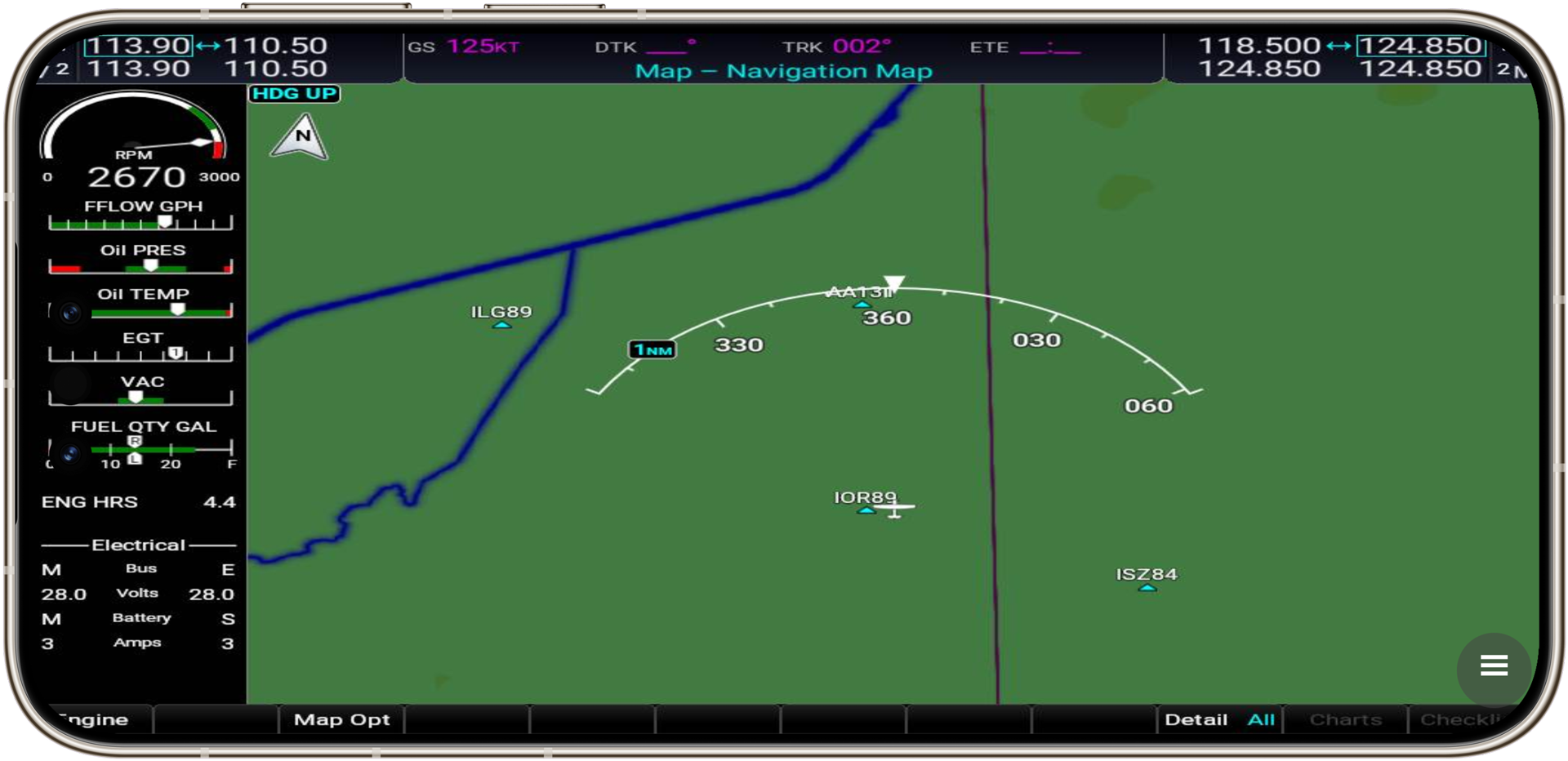
- G1000 MFD: 68-key physical panel; with the G1000 MFD image mirrored by WePanel, map, waypoint and system page operations feel like the real device.
- The two-piece set supports one-click deployment with WeSim’s G1000 preset — plug and play.
G3X Touch family (GDU 460 / GDU 370) #
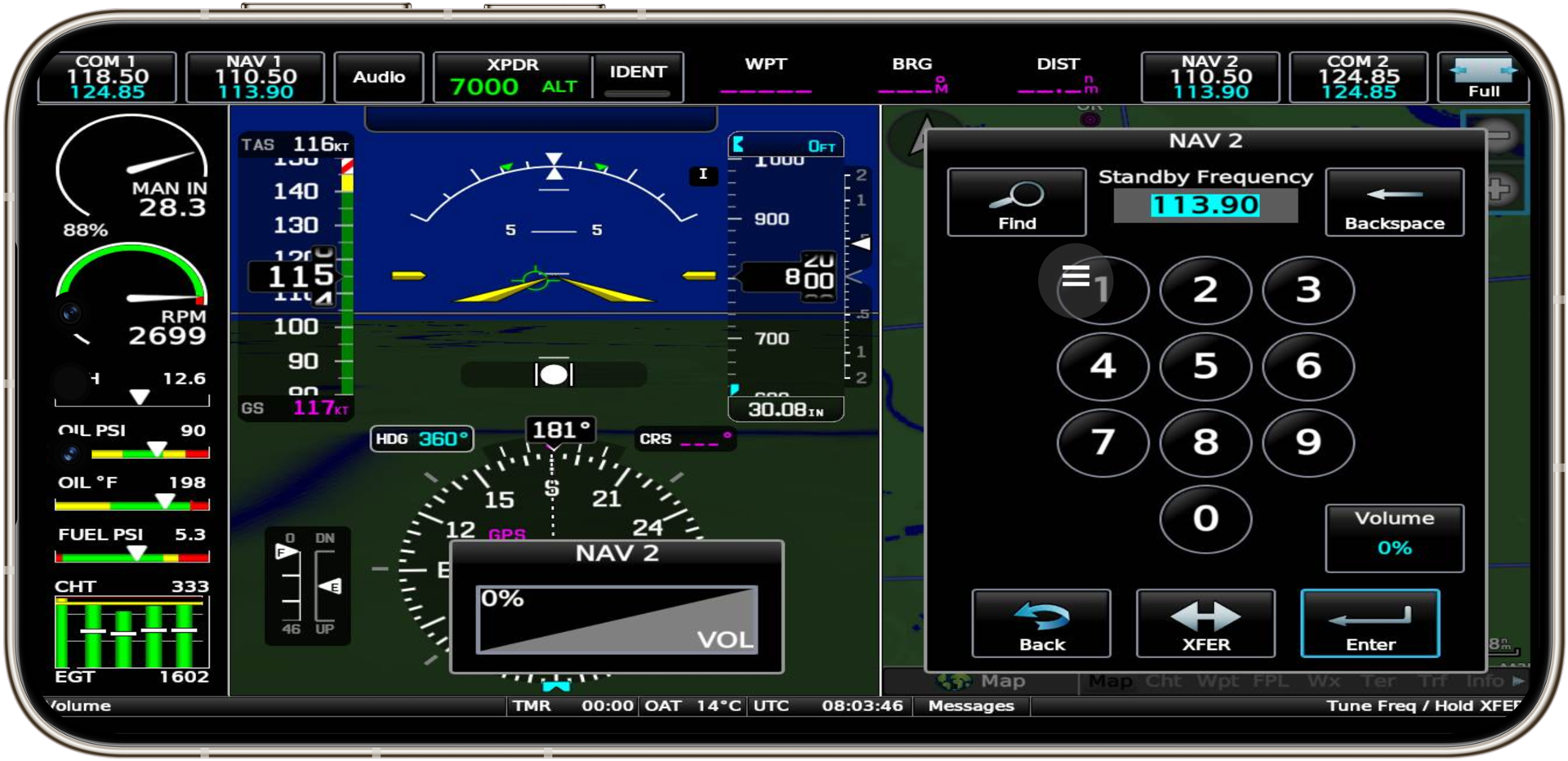
- GDU 460: G3X Touch physical key unit (dual units supported, left/right). WePanel mirrors the aircraft’s G3X Touch panel images onto a touchscreen — common functions with physical keys, page swiping and map zooming directly by touch; dual-channel operation feels natural.
- GDU 370: same-series physical key unit, a flexible fit for single-screen setups.
- G3X Touch hover interaction (long-press menus, etc.) is specially optimized by WePanel’s touch adaptation; touch operation and physical keys never interfere.
Free combination #
The hardware panels above can be freely combined with WePanel-mirrored panels: fly G1000 with G1000, G3X with G3X, or mix them in one cockpit. All panels are managed through WeSim — one software, one interface for all configuration.
Working with WeSim #
WePanel is part of WeFly Technology’s WeSim cockpit system: WeSim handles data interaction between physical hardware panels (buttons, knobs, LEDs, gauges) and the simulator; WePanel handles the display and touch of glass instruments.
Completely free: WePanel is provided free with WeSim — no license code, no subscription, no feature limits. Install and use forever.
Things you may care about #
| Question | Answer |
|---|---|
| Will it affect flight performance? | Panel images are captured on demand in the background — minimal impact on flying, smooth even in long sessions |
| Do I need extra drivers or an account? | No. It comes with WeSim and runs fully locally — no account, no internet required |
| Which aircraft are supported? | FBW A320neo, PMDG 737, Working Title G1000/G3000/CJ4 and other mainstream aircraft work out of the box; any panel name can also be added manually |
| Is it free? | Yes. Provided with WeSim — no license code, no subscription, no feature limits |
Download & installation #
WePanel comes with WeSim — no separate installation needed. Download WeSim (WePanel included), unzip and run: WeSim.zip


