Overview #
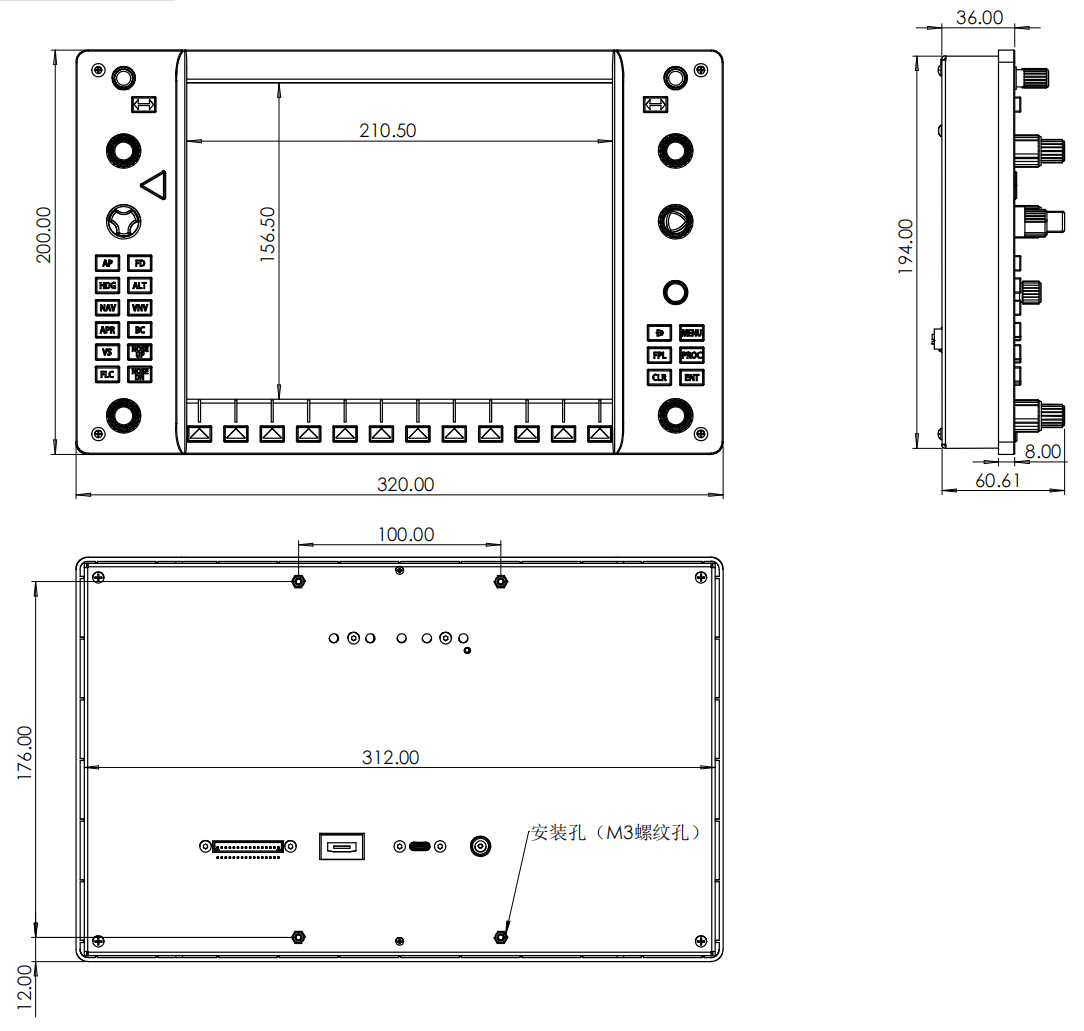
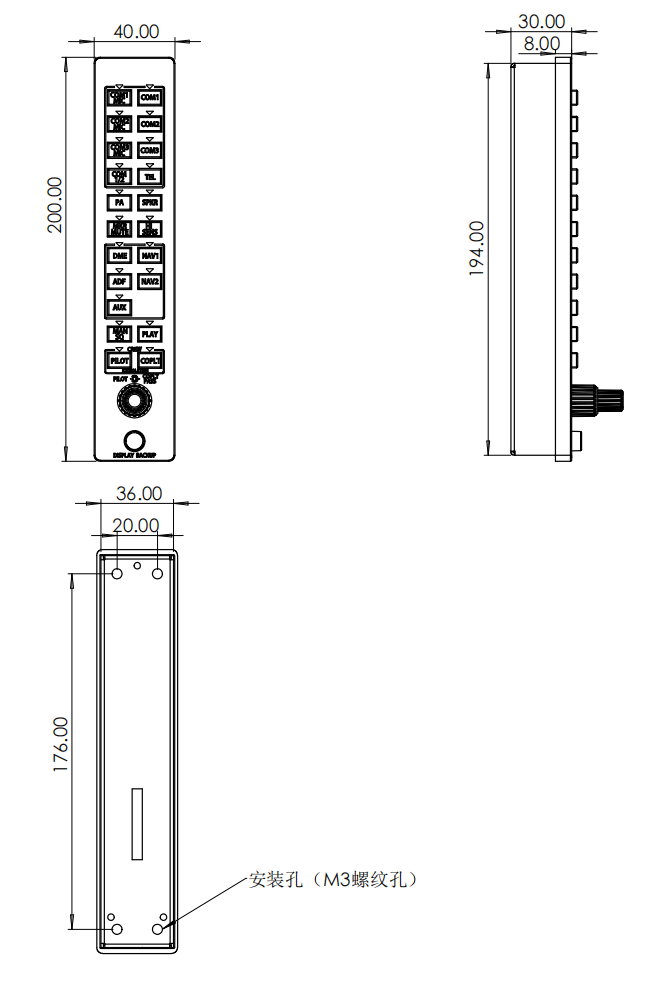
The Wefly G1000 integrated avionics trainer consists of a PFD (Primary Flight Display), an MFD (Multi-Function Display), and an Audio Panel. Both the PFD and MFD are equipped with one 12V power port, one HDMI port, and one USB Type-C port. The PFD additionally has a terminal strip interface for connecting the Audio Panel. The Audio Panel has no USB Type-C port and cannot be used standalone; it must be connected to the PFD to work.
Supported Aircraft List #
The Wefly G1000 integrated avionics supports training on all aircraft equipped with Garmin G1000 avionics, such as Cessna 172, T182, 208B, Citation Mustang, Cirrus SR22, SF50, Diamond DA40NG, DA62, Embraer Phenom 100, Beechcraft Baron G58, Bonanza G36, King Air B200, Pilatus PC-6, Piper PA-28-181, Tecnam P2006T, Aurora SA60/SA70, and more. The specific aircraft models in flight simulation software are as follows:
MSFS2020/MSFS2024
- Carenado CT182T SKYLANE
- Cirrus SR22
- Daher Kodiak 100
- Diamond Aircraft DA40NG
- Diamond Aircraft DA62
- Embraer E50P Phenom 100
- Pilatus PC-6
- Textron Aviation Beechcraft Baron G58
- Textron Aviation Beechcraft Bonanza G36
- Textron Aviation Cessna 172 Skyhawk (G1000)
- Textron Aviation Cessna 208B Grand Caravan EX
X-Plane 11/X-Plane 12
- Cessna Skyhawk (G1000)
- Cirrus Vision SF50
- Aerobask Diamond DA62
- Aerobask E1000 G1000 Edition
- Aerobask Phenom 300
- Carenado C172 Skyhawk G1000
- Carenado CT182T SKYLANE G1000
- Hotstart TBM900
- JustFlight PA-28-181
- Rusky-Sling2 TAF SLING 2
- RWDesign Cessna Citation Mustang
- STMA Diamond DA40 G1000
- Super King Air B200
- Thranda Quest Kodiak
- TorqueSim SR22
- TorqueSim SR22TN
- vSkyLabs Tecnam P2006T
- vSkyLabs Flight Design CTLS
FSX/Prepar3D
- Carenado C172 Skyhawk G1000
- Carenado CT182T Skylane G1000
- Carenado CT206H Stationair G1000
- Carenado Diamond DA62 G1000
- Carenado PA-46 500TP Malibu Meridian G1000
- Carenado SR22 GTSX Turbo HD
- Flight1 Cessna T182T Skylane
- Perfect Flight C172SP
Dimensions and Installation #
The maximum dimensions of the suite are (without packaging): 70 × 20 × 6.5 cm.
The suite is sent in a carton box: 50 × 28 × 26 cm.
Approximate weight of the product without packaging: 6kg.
Total gross weight: 8.2kg.
 <br>
<br>
Electrical Connections #
- Place the PFD on the left and the MFD on the right, and connect the Audio Panel cable to the PFD port.
- Connect the PFD/MFD units to your computer using Type-C cables.
- Connect the PFD/MFD units to your computer with HDMI cables. If your computer’s graphics card does not have enough HDMI output ports, use a USB to HDMI adapter, adapter driver download. USB 3.0 to HDMI adapters may be incompatible with some graphics card drivers; technical support is not provided in such cases.
- Connect the power adapters.
Display Settings #
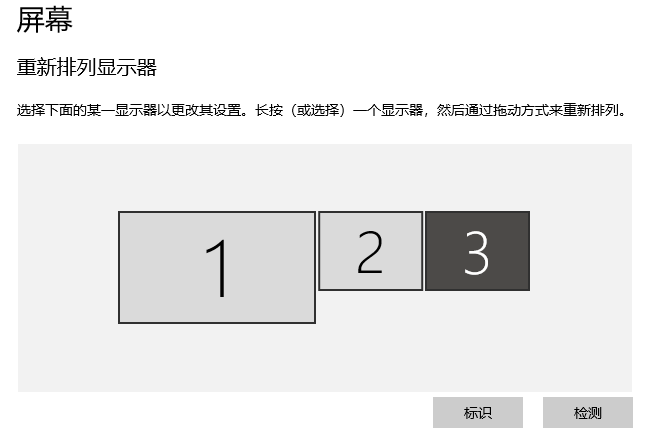
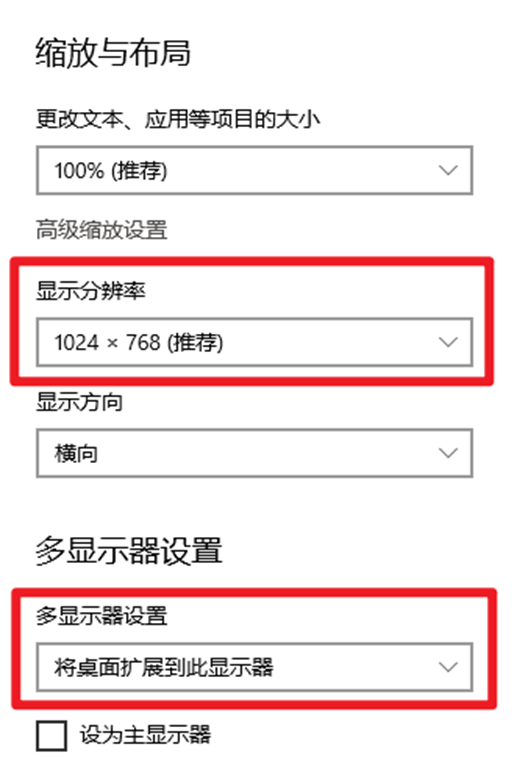
Go to your computer’s “Display Settings” and set the scaling of the main display to 100%. Click and select the PFD/MFD screen respectively, choose the extend mode in “Multiple Displays”, and set the “Display Resolution” to 1024×768 (recommended).
If the PFD or MFD picture does not fill the screen, try going to Display Settings > Advanced Display Settings > Refresh rate and choose a different refresh rate; if it still does not fill the screen, it is recommended to adjust the resolution to 1920×1080.
 <br>
<br>
Install Driver Software #
Download WeSim and install it.
Software Setup #
MSFS 2020/MSFS2024 #
Button Input #
Button input depends on the MobiFlight module, which must be installed first. If Flight Simulator 2020/2024 is running, please close it first.
Automatic Installation #
- Run WeSim and click the menu Settings.
- Select the MSFS tab on the settings page.
- Click the Install WASM Module button. The system will automatically detect the MSFS Community folder and install the MobiFlight WASM module.
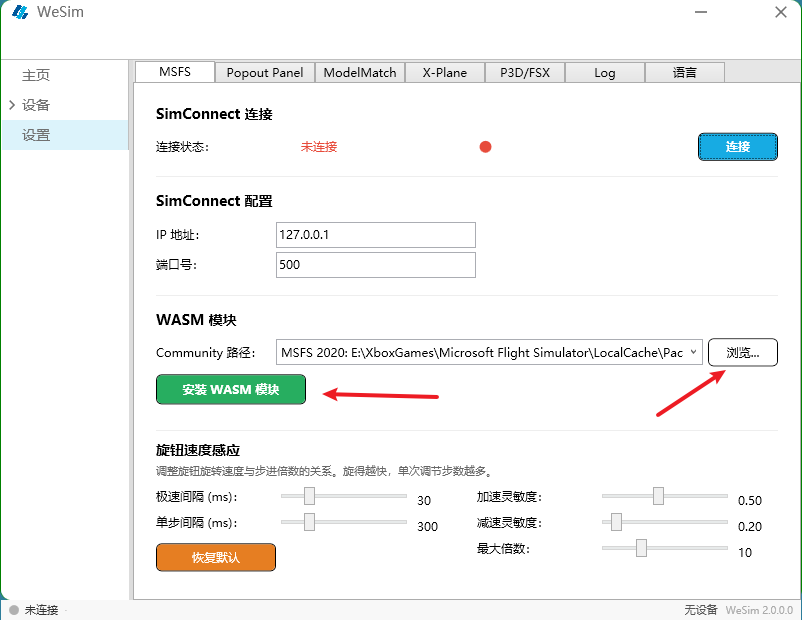
If the Community path is not detected automatically, you can click the “Browse” button to select the Community folder manually.
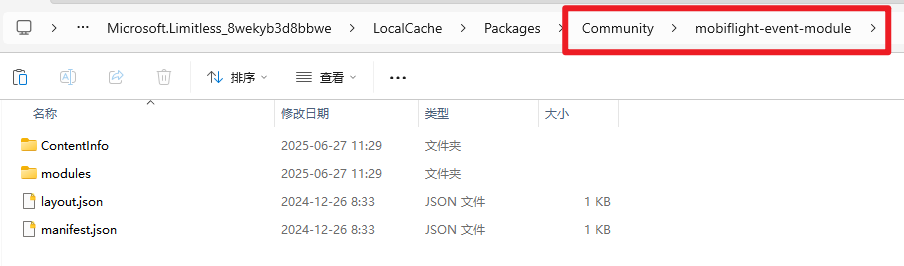
After installing the MobiFlight WASM module, you can check the Community folder to confirm the installation succeeded.

Manual Installation #
If a custom Community folder causes automatic installation to fail, you can install the MobiFlight WASM module manually: copy the FlightConnector\MSFS2020-module\mobiflight-event-module folder into the Community folder.
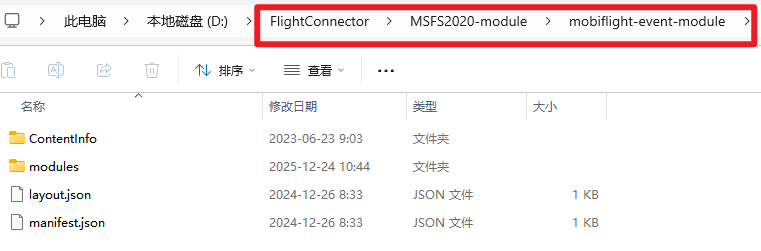
The MSFS2020 Community folder is located by default at %LocalAppData%\Packages\Microsoft.FlightSimulator_8wekyb3d8bbwe.
The MSFS2024 Community folder is located by default at %LocalAppData%\Packages\Microsoft.Limitless_8wekyb3d8bbwe.
Instrument Popout #
Open Flight Simulator 2020/2024 and select an aircraft equipped with the G1000 system.
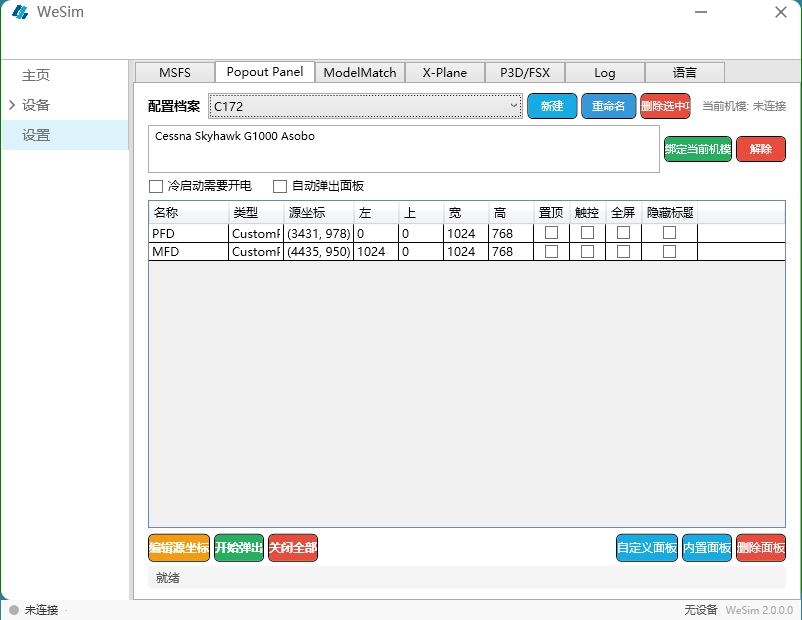
After starting the flight, click the menu Settings → the Popout Panel tab in WeSim.
Click the New button to create a new profile and select it.
Move the MSFS2020/2024 view so that all instrument panels to be popped out are visible in the window.
Click the Edit Source Coordinates button to start marking the instrument panels to pop out. Left-click each instrument panel (PFD and MFD) in turn; the clicked panels’ coordinates will appear in the instrument list. Set the type to CustomPanel.
Click the Start Popout button to pop out the instrument panels.
Wait for the popout to finish, then drag the popped-out instrument panels to the corresponding screens with the mouse. You can name the popped-out windows in the list and set window size and position by editing the Left, Top, Width, and Height values directly in the list, or by dragging the window edges with the mouse. Do not click the window’s “Maximize” button. Select the Hide Title radio option to hide the instrument panel’s title bar.
On the next flight, simply select the profile and click Start Popout. You can also check the Auto Popout Panels checkbox so the saved panels pop out automatically when the bound aircraft is loaded.
X-Plane 11/X-Plane 12 #
Install the G1000 preset
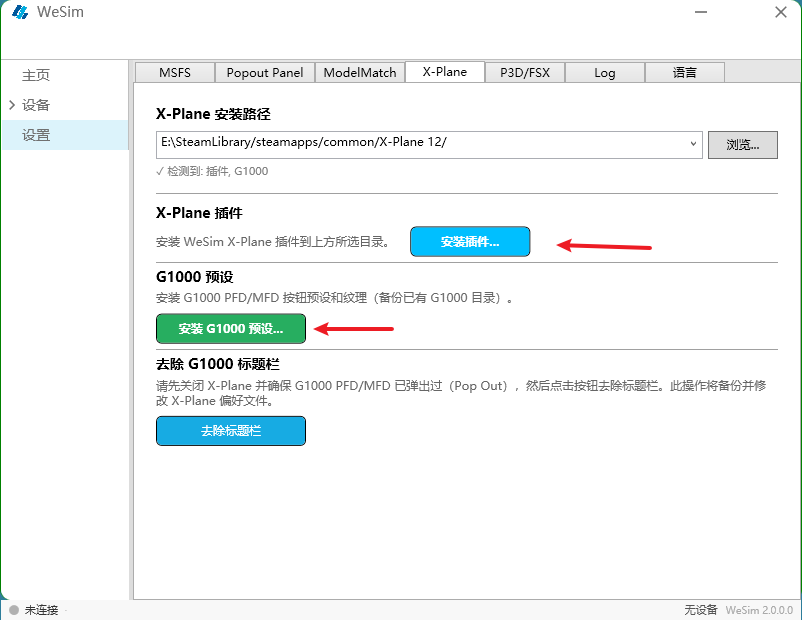
- Run WeSim and click the menu Settings → the X-Plane tab.
- Select the folder where the X-Plane main program is installed in the list box. If the list box is empty, click Browse and manually select the X-Plane main program folder.
- Click the Install Plugin button to automatically install the WeflyXP plugin.
- Click the Install G1000 Preset button to install the G1000 configuration files.
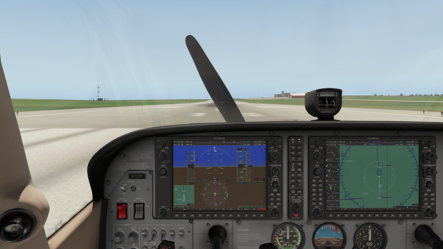
Open X-Plane and select an aircraft equipped with the G1000 system. For supported aircraft, see here.
After the aircraft is loaded, click the mouse on the PFD and MFD respectively, and the PFD/MFD windows will pop out.
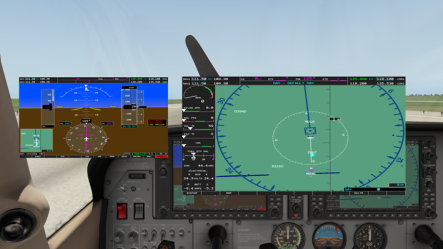
Move the mouse to the top-right corner of the popped-out PFD/MFD window; when a box appears, left-click, and the PFD/MFD window will show a title bar. Drag the PFD/MFD to the corresponding screen and maximize it.
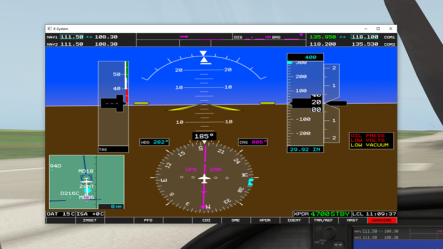
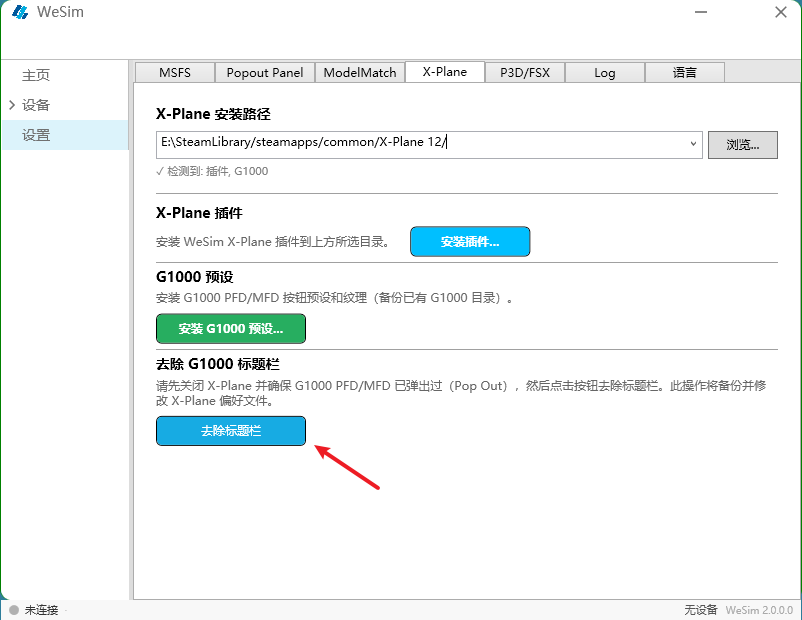
Close X-Plane, then click “Remove Title Bar” to remove the PFD/MFD title bars. When prompted, click OK, and X-Plane will restart automatically.
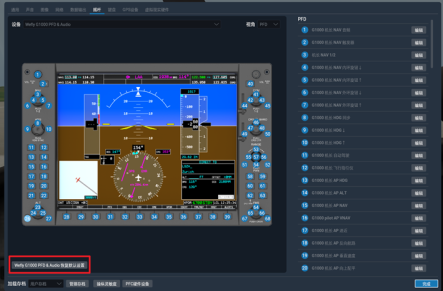
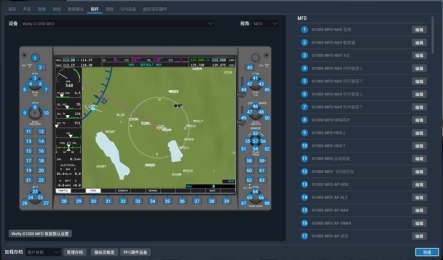
Go to the X-Plane settings page, select Wefly G1000 PFD & Audio and Wefly G1000 MFD respectively, and click “Reset to Default”.
 <br>
<br>
FSX/Prepar3D V3/Prepar3D V4/Prepar3D V5 #
Select an aircraft equipped with the G1000 and start the flight. Once you can see the G1000 instrument display, press Shift+4 and Shift+3 on the keyboard to pop out the PFD and MFD windows. Right-click on the PFD/MFD window and unlock it, then drag the PFD/MFD windows to the corresponding device screens, adjust their size and position, and save the scenario. Next time you fly, simply load the saved scenario.
Extract the following archive into the “gauges” folder under the FSX/Prepar3D installation folder to remove the borders of the popped-out PFD/MFD instruments.
Install FSUIPC
Button input on the P3D/FSX platform depends on FSUIPC. Please make sure FSUIPC is installed (the free version is sufficient). If not installed, download and install it from the FSUIPC website.
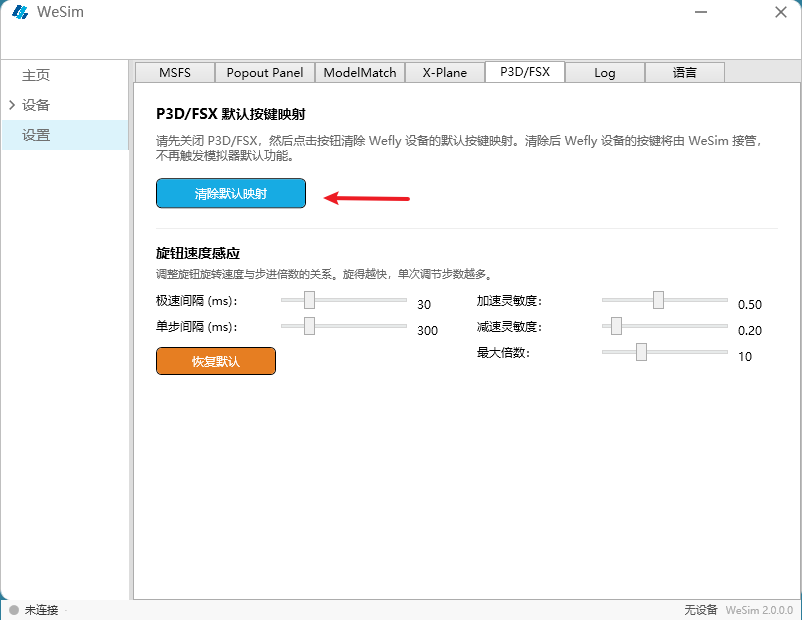
Disable default key mappings
Run WeSim and click the menu Settings → the P3D/FSX tab, then click the Disable Default Keys button. This will automatically disable the default key mappings of WeSim devices in P3D/FSX to avoid key conflicts.