
Table of Contents
G3X Compatible Aircraft
GDU460 #
MSFS2020/MSFS2024 #
Default #
- CubCrafters X Cub
- CubCrafters NXCub
- DracoX(only available in MSFS2024)
- King Air 350i
- JMB VL-3
- Volocopter Volocity
Third Party #
- Adi S Kitfox Speedster Series 7
- Airfoillabs Bristell B23
- Beast Horus
- Black Square Velocity XL
- Breezer Sport
- BT Studio Kitfox STI
- CubCrafters MonsterNX
- Deejing Vans RV7/RV7A
- f7 Eagle S100/R100
- FSReborn TL-Ultralight Sting S4
- GotFriends Experimental MXA
- GotFriends Vertigo
- JMB VL-3 915
- Orbx Blackwing 635RG
- Parallel 42 FreedomFox/Fox2 Kitfox Series 5 STi
- SimWorks Studios Van’s RV-10
- SimWorks Studios Van’s RV-14
GDU370 #
MSFS2020/MSFS2024 #
Default #
- Extra 330LT
Third Party #
- Pipistrel Virus SW121
Connect the cables
- Connect the GDU460/370 units to your computer by Type-C cables.
- Connect the device to your computer by an HDMI cable.
- Connect the device to power using the provided 12v power adapter.
Configure the Display
Go to your computer’s “Display Settings” and set the scaling of the primary display to 100%. Click and select the GDU460/370 screen respectively, select the extend mode in the “Multiple Display Settings”, and the “Display Resolution” is recommended to be set to 1920ⅹ1080(GDU460)/1200ⅹ1920(GDU370). Directional presentation needed to be set as longtitudinal(GDU 460)/Vertical (GDU370).
Simulation Software Setup
Download and install Wesim : WeSim(Cilck to download)
GDU460 #
Run the Wesim, Open MSFS and select the model with GDU460
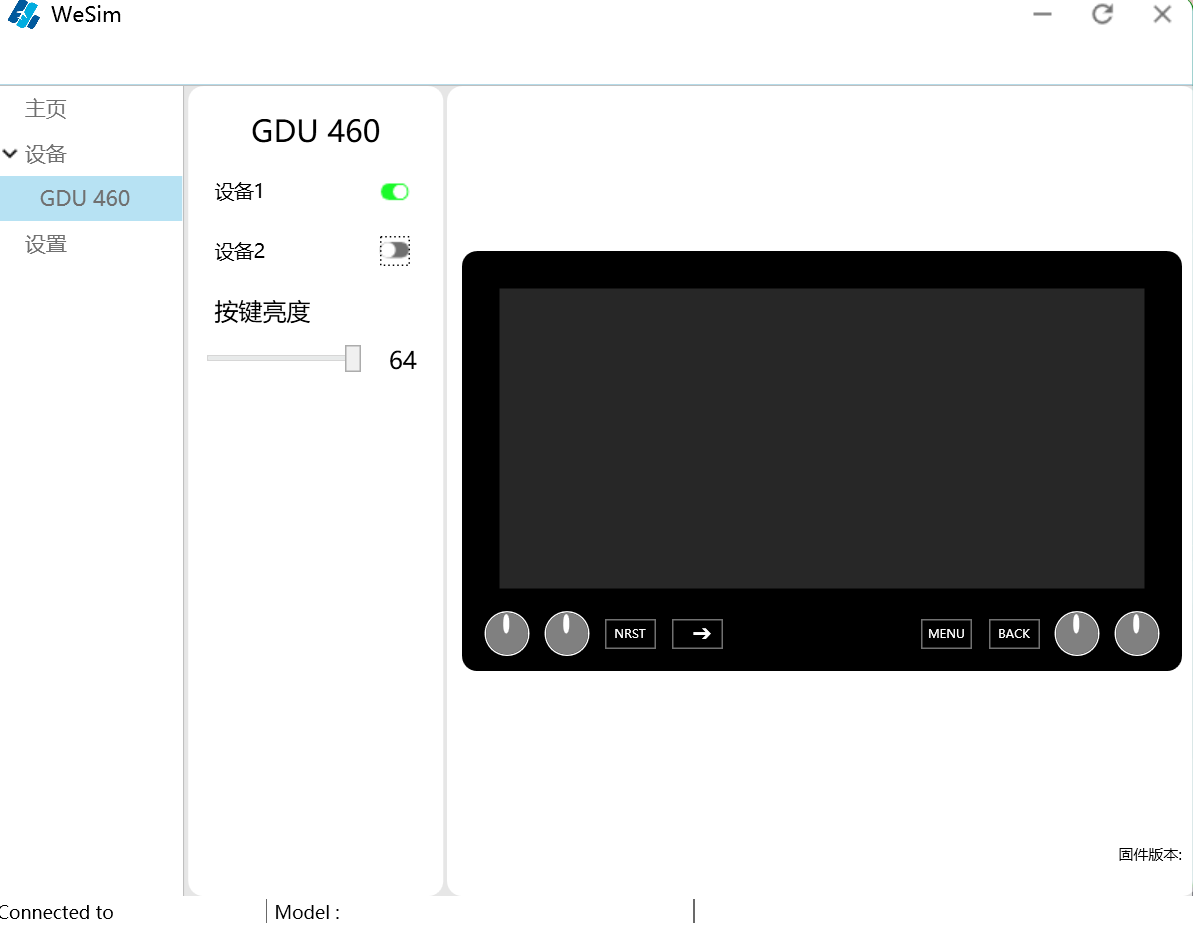
Please refer:WePanel Engine
GDU370 #
The settings of GDU370 and GDU460 are essentially identical, with primary operational distinctions being:
- Different instrument display resolutions between the units
- GDU370 lacks touch control functionality; the hand symbol activation is unnecessary for GDU370 operation


